
Appearance
Daily operations
Last reviewed: 15 July 2026 · Beat The Queue version: 2.6.0 (11 July 2026)
Use Live Orders to manage current work, take staff-created orders, adjust lead times, and close down safely.
Feature availability
The pages you see depend on your account features, connected equipment, and payment setup. Features marked Pro or described as account-controlled may not be included in every plan.
Live Orders overview
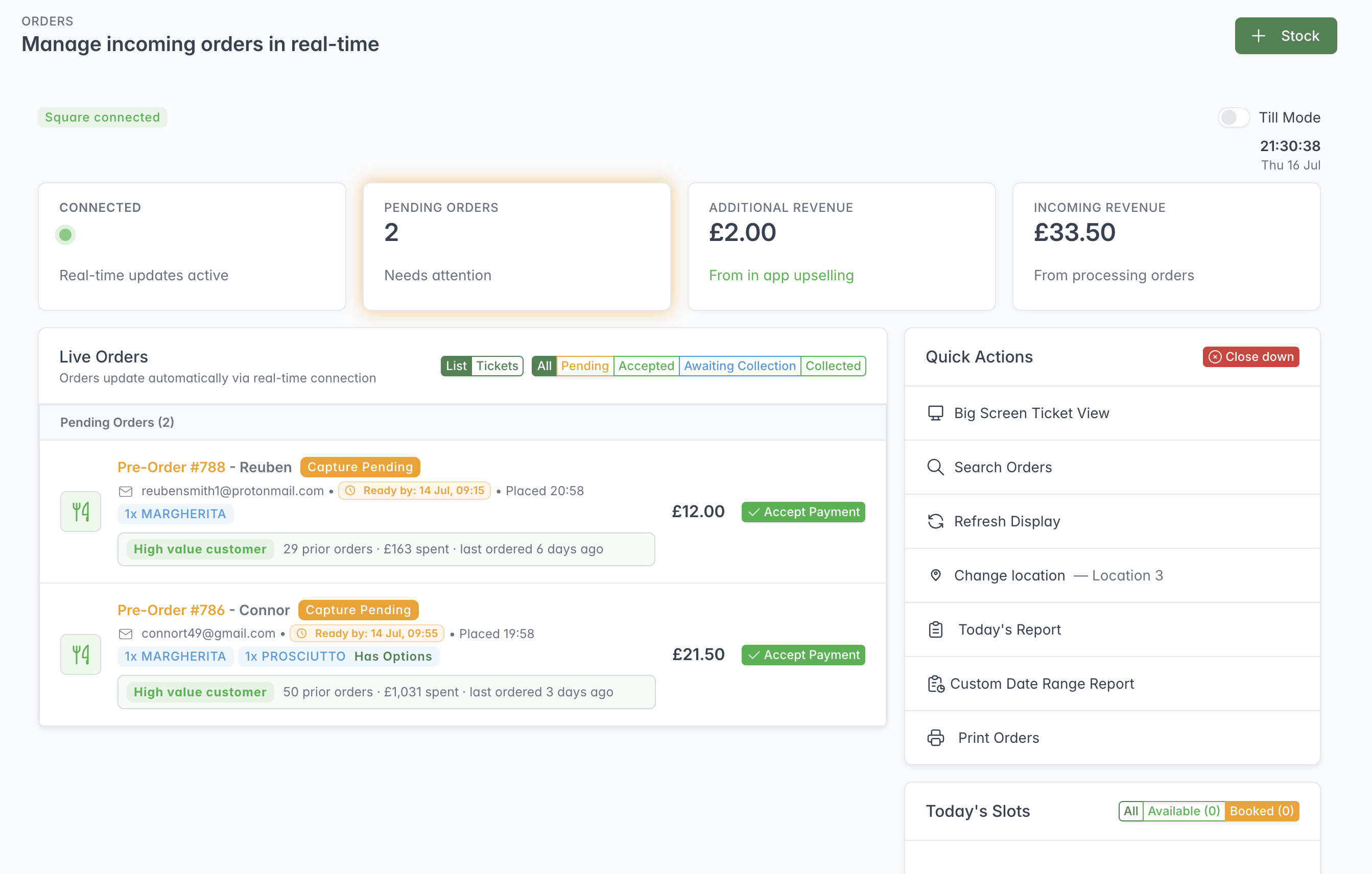
Live Orders brings incoming orders, service summaries and frequently used actions into one screen.
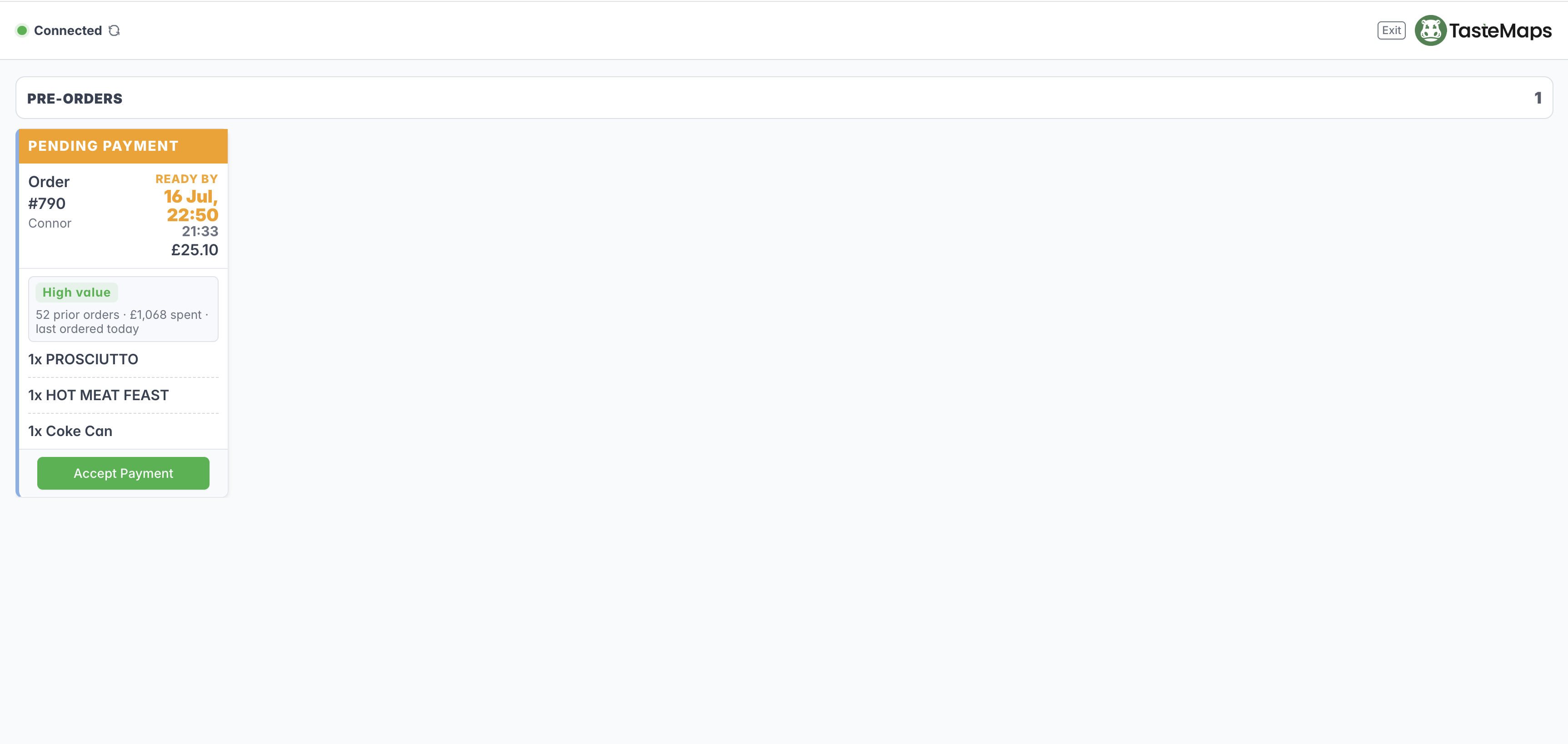
Big Screen Ticket View presents each order as a compact operational ticket.
Live Orders is the operational home screen. It updates when order or stock activity is received, so teams can work from a shared, current view without continually refreshing the page.
The exact layout depends on the saved view and enabled account features. It can include:
- live order cards;
- a ticket-style kitchen view;
- a large-screen ticket view;
- today’s collection slots;
- order and revenue statistics;
- Till Mode; and
- quick actions for search, stock, reporting, printing, lead times, collection displays, and close-down.
When opening Live Orders for the first time in a browser, the operator is asked whether the account is ready to accept orders. This choice is remembered in that browser. Being ready also enables the audible new-order alert; browsers may require an operator interaction before they allow sound.
For accounts with multiple locations, select the correct location before beginning service. The selected location is reused by other operational pages where possible.
Understanding order states
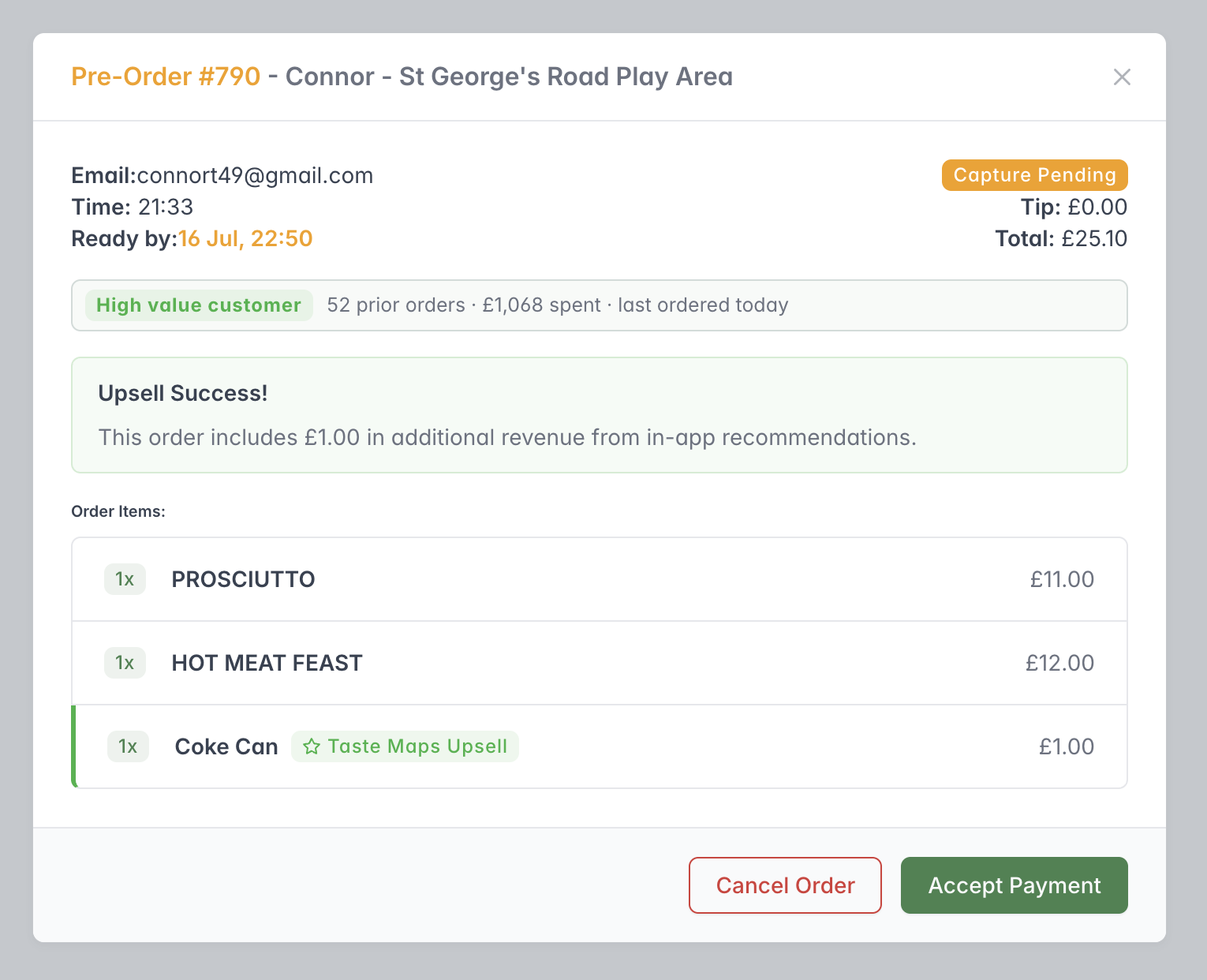
Open an order to review its contents and collection time before accepting payment or cancelling it.
Customers and staff may see different wording around the payment and fulfilment stages. In normal customer-facing documentation, use the following plain-language model:
- Pending — the order has arrived but has not yet been accepted and charged.
- Accepted / Paid — payment has succeeded and the location is preparing or delivering the order.
- Awaiting collection — preparation is complete and the customer can collect.
- Collected / Completed — the order has been handed over or the service has been completed.
- Cancelled — the order will not be fulfilled.
- Partially refunded / Refunded — some or all of the payment has been returned.
- Failed / Requires action — payment did not complete normally and may need investigation.
The detailed order panel may show the more precise payment wording Pending, Requires Action, Authorised, Capture Pending, Succeeded, Partially Refunded, Refunded, Cancelled, or Failed.
Accepting an order
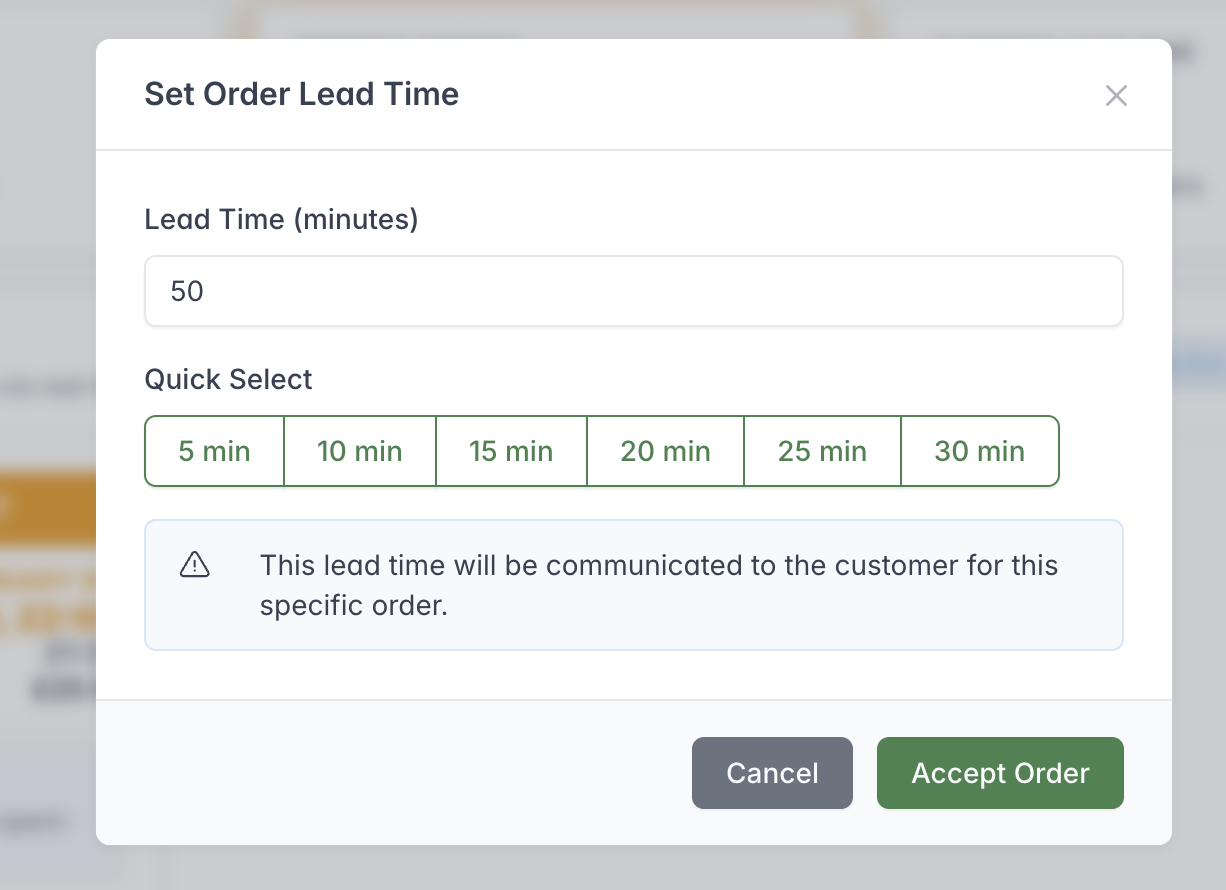
Set a realistic preparation time before accepting the order; this lead time is communicated to the customer.
To accept a pending order:
- Open the order.
- Review the customer, fulfilment time, items, options, notes, totals, and any deal information.
- Check whether any ordered item has since been marked out of stock.
- Select Accept.
- If lead times are enabled, confirm the expected preparation time.
Acceptance starts or captures the payment. If an ordered item is now out of stock, the acceptance request identifies it as removed. Operators should therefore review every item before accepting so the customer is not surprised by an adjustment.
If Auto-Confirm Orders is enabled in Venue Settings (the account settings), orders are automatically accepted and the customer is charged without this manual step.
For a staff-created order marked as awaiting payment, the order detail screen can send the order to a linked Square Terminal. Square must be connected and the correct Square location and device must already be selected.
Lead times
Lead times give customers an advisory preparation estimate. They can be enabled in Venue Settings.
Operators can:
- choose a lead time while accepting an order;
- select a common value such as 5, 10, 15, 20, 25, or 30 minutes; and
- update or reset the current account lead time from Live Orders.
Lead times are estimates rather than collection capacity. Collection-slot capacity is managed separately.
Cancelling an order
Open an order and choose Cancel. This option is only available before the customer has been charged.
A default cancellation message is provided, and you can always add more information for the customer before confirming. The order then moves to the cancelled state.
Cancelling an order does not normally cost anything because no payment has been taken. Check your payment provider's current terms to confirm how cancellations are handled.
Marking an order complete or collected
Use Complete when fulfilment has finished without a collection handover. Use Collect when the customer has received a collection order.
If Require PIN on Collection is enabled, ask the customer for their collection PIN and follow your account’s verification policy before confirming collection.
Refunding an order
Open the order, choose Refund, enter a positive refund amount, and confirm. The screen supports a chosen amount, allowing full or partial refunds where supported by the payment provider.
The payment status updates automatically after a refund. Refunds usually incur a payment-provider cost, and settlement times and restrictions also depend on the provider. Check your provider's current terms before issuing a refund and when advising the customer.
Reprinting documents
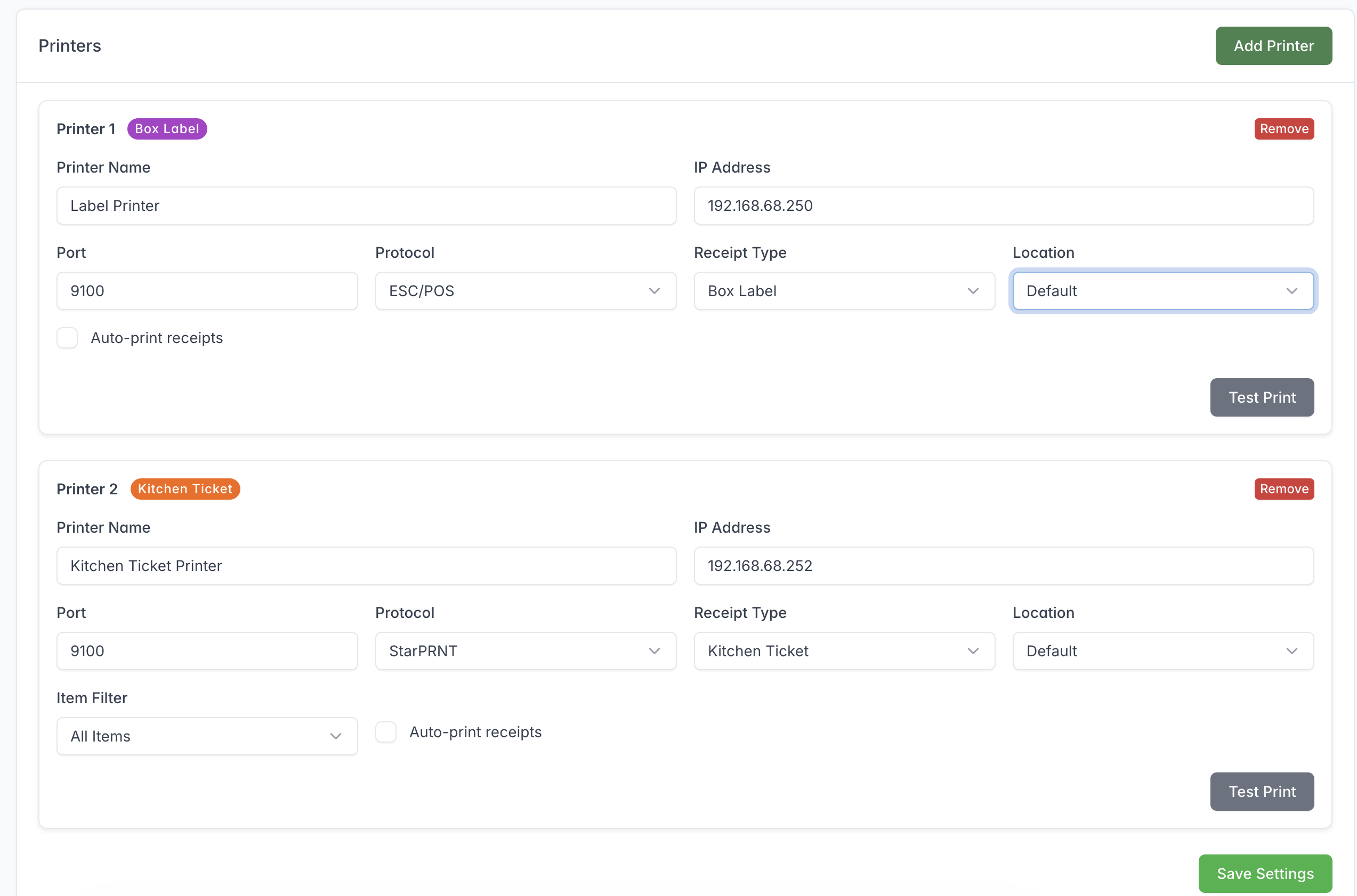
Configure each printer for its intended output and Location, then use Test Print before relying on it during service.
From an order, staff can send one of the following to configured printers:
- customer receipt;
- kitchen ticket; or
- labels.
The relevant Print Link and printer must be online. A successful confirmation message means the print job was sent; use Device Logs and a printer test if nothing is produced.
Searching and filtering live work
Live orders can be filtered by stages such as pending, preparing, accepted, awaiting collection, or collected. Search supports order number and collection PIN. Views can also group or filter work by collection slot.
Opening an order shows customer contact details when available, the order source, scheduled time, delivery or collection details, basket items and options, notes, totals, deal savings, and available actions.
Till Mode
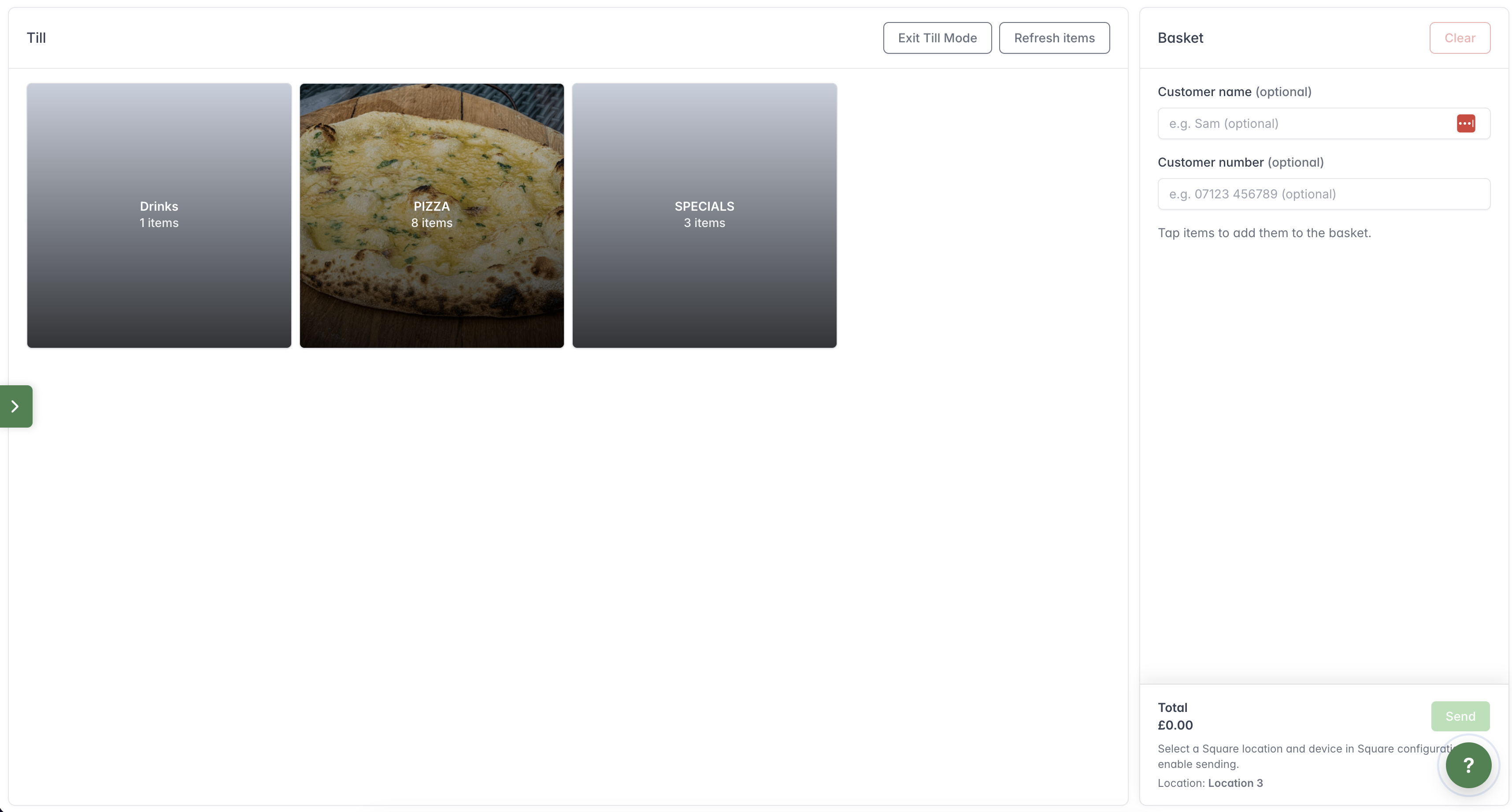
Choose a menu section, add items to the basket and enter customer details when needed.
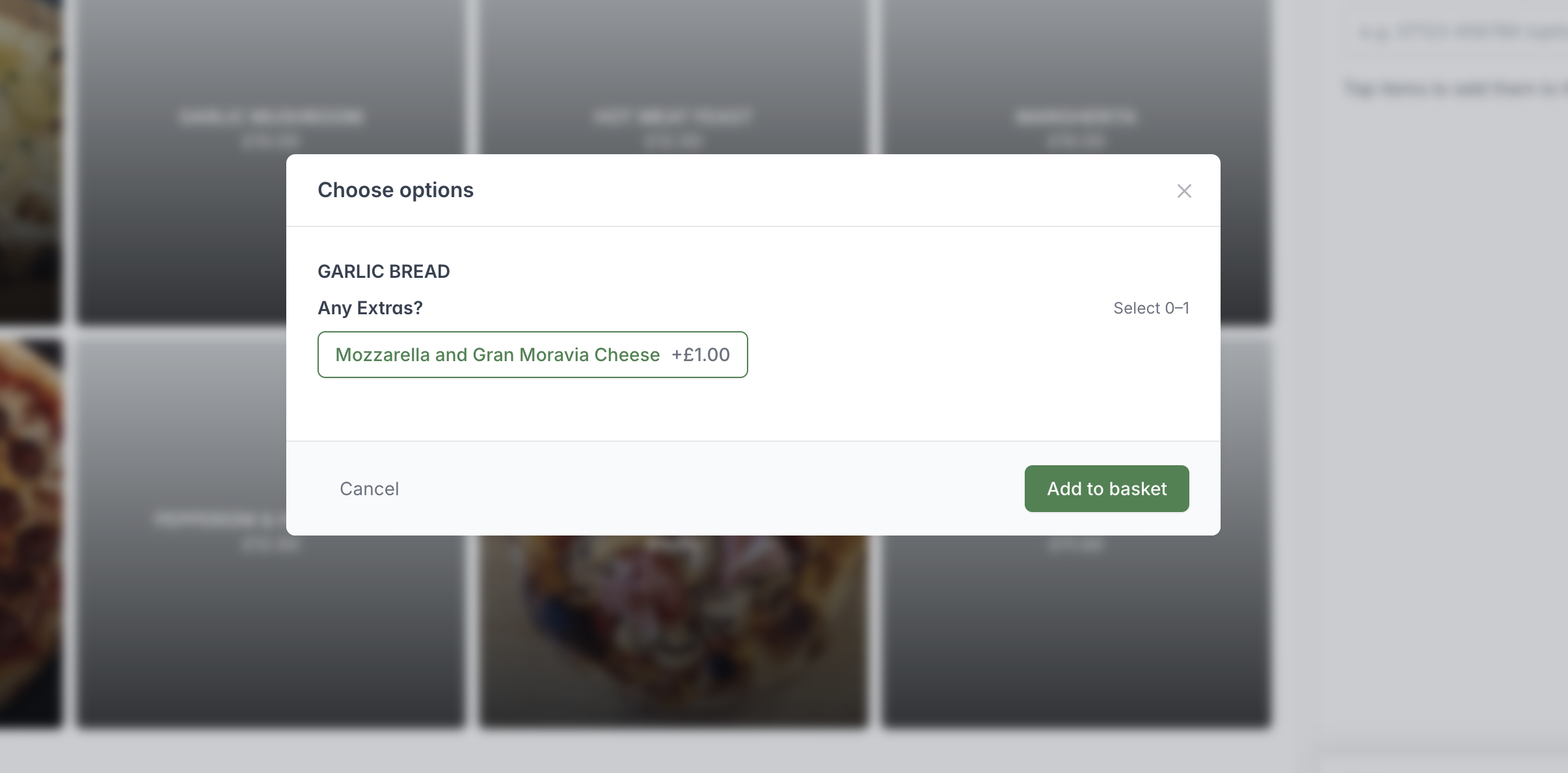
Select any required or optional choices before adding the item to the basket.
Till Mode lets staff build an order from the location’s menu without asking the customer to use the ordering app.
Typical workflow:
- Turn on Till Mode from Live Orders.
- Select a menu section and item.
- Choose any required sizes, toppings, add-ons, or other options.
- Adjust quantities and review the basket.
- Enter the available customer or fulfilment information.
- If the order is for a slot, confirm the selected slot and capacity.
- Create the order and complete the supported payment flow.
Staff can create local orders and slot-based manual orders. Square Terminal payment is available when Square is connected and a terminal has been paired. Orders created through the manual Beat The Queue flow can remain pending until payment is taken at the terminal.
For a slot order, the total item weight must fit within the remaining slot capacity. If it does not, remove items or choose a different slot.
Closing down for the day
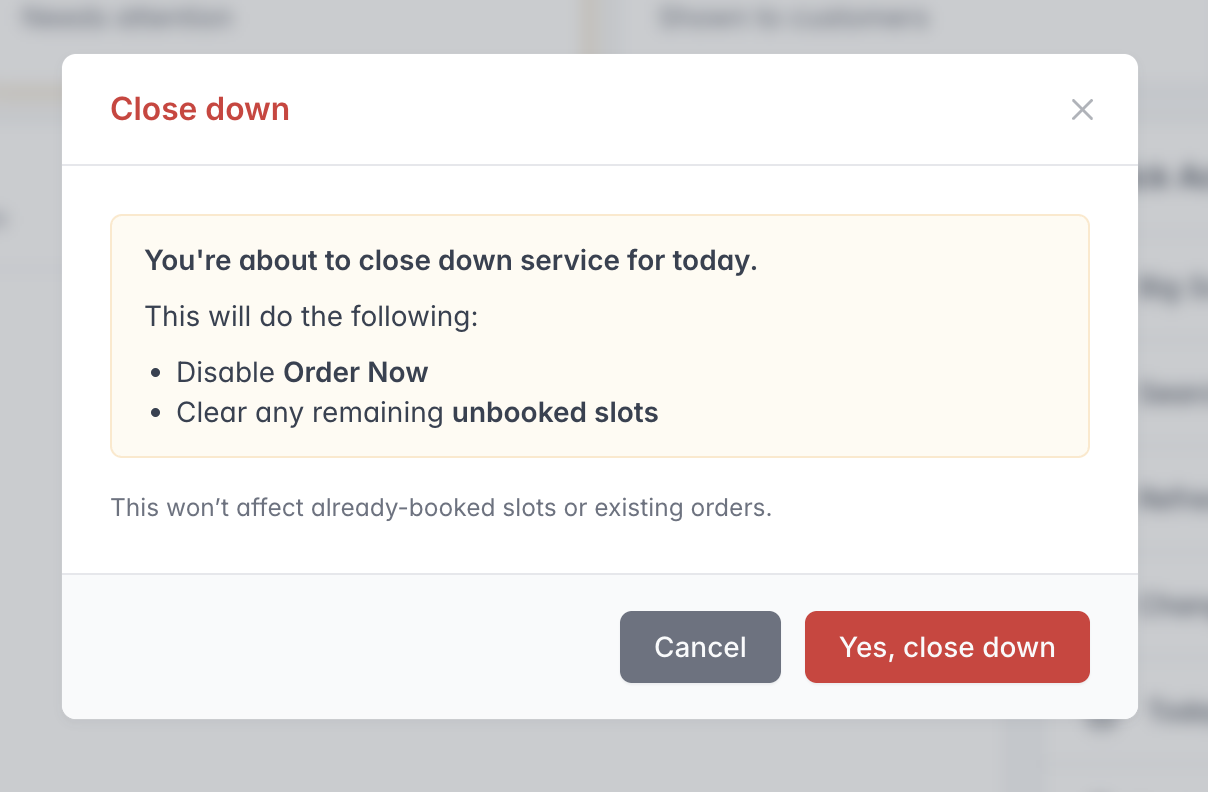
Close down does not affect existing orders or collection slots that are already booked.
The Close down action is intended for pre-order operations. It:
- disables Order Now; and
- deletes remaining unreserved collection slots shown for the day.
It does not remove reserved collection slots or existing orders. Because this changes availability immediately and deletes open slots, only use it once the account has finished accepting new orders for the day.
Collection screen
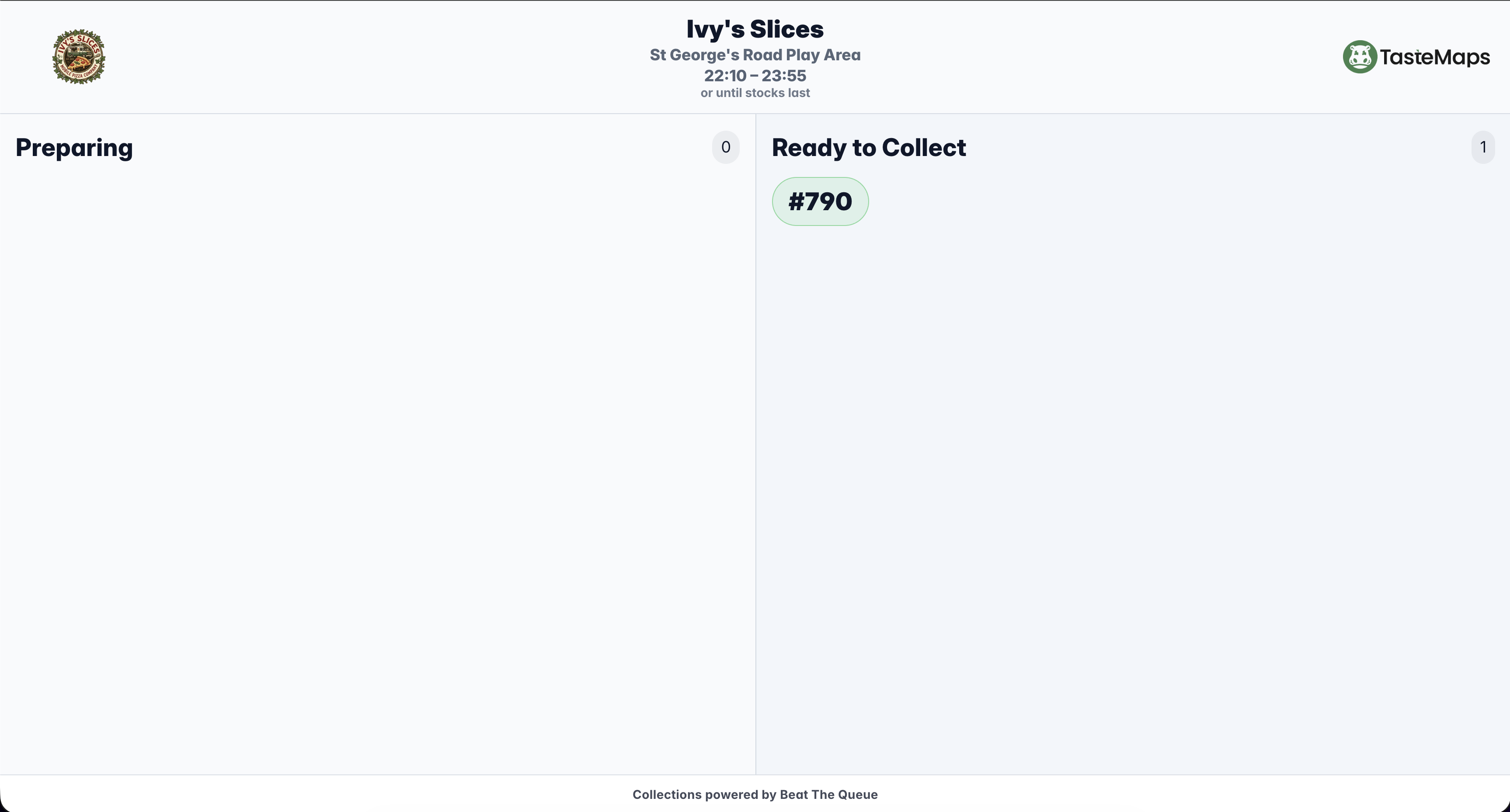
The collection screen shows customers when their order moves from preparation to ready for collection.
When enabled, Live Orders provides a link for a location-specific collection display. Open this link on a separate screen or browser.
The display shows:
- ordering-site branding and location;
- today’s displayed hours where available;
- order numbers currently Preparing; and
- order numbers Ready to Collect.
The screen updates from live order events and celebrates newly ready orders visually. It is designed to show order numbers rather than customer names. The link must include a location to keep the display correctly scoped.