
Appearance
Locations, collection slots, and calendars
Last reviewed: 15 July 2026 · Beat The Queue version: 2.6.0 (11 July 2026)
Configure locations and capacity so customers can choose when to collect their orders.
Feature availability
The pages you see depend on your account features, connected equipment, and payment setup. Features marked Pro or described as account-controlled may not be included in every plan.
Locations
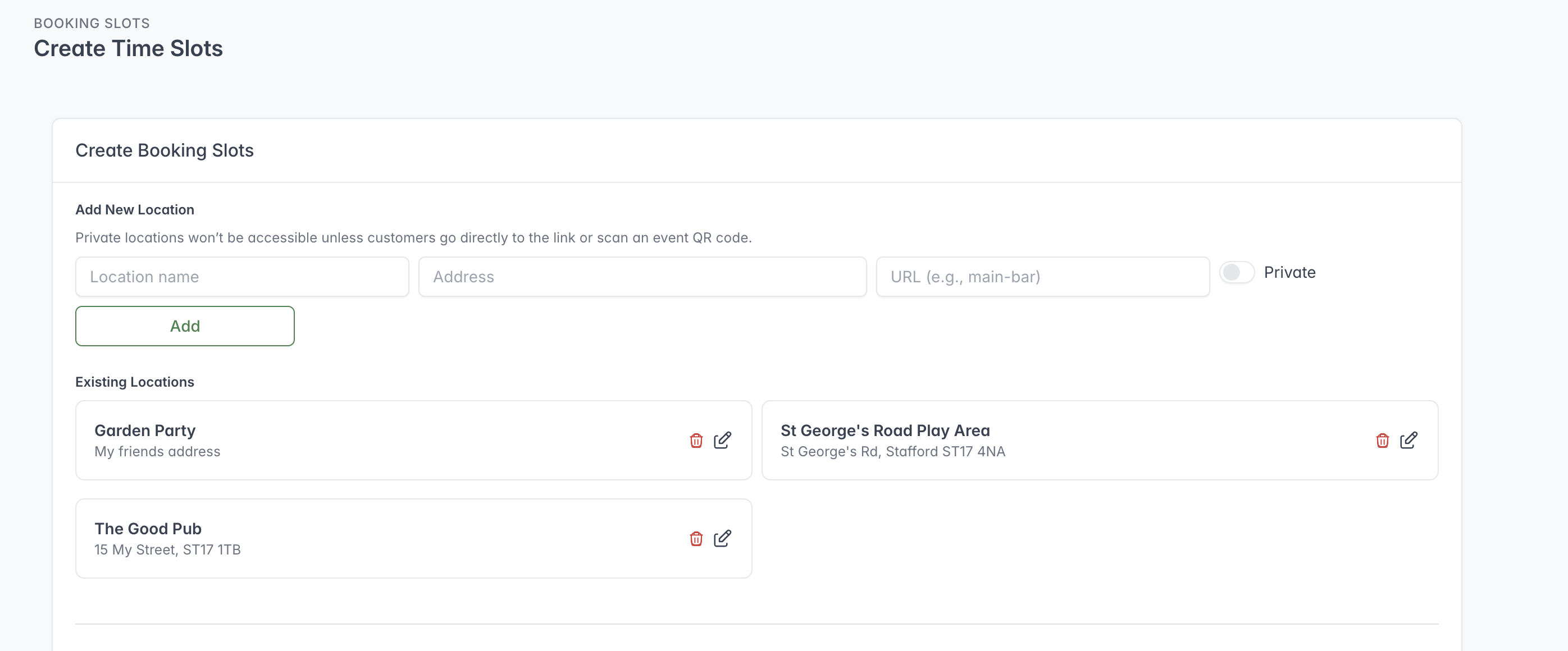
Locations can be added, made private, or selected for editing from the Booking Slots screen.
Locations support collection slots, printers, stock, integrations, and QR workflows. A location can contain:
- a friendly name;
- address;
- URL slug;
- opening days and times; and
- a private/public setting where available.
The URL slug is normally generated from the name but can be edited. Keep it short, recognisable, and stable after publishing links.
A private location is not normally discoverable by browsing the customer app. Customers can still reach it through its direct link or an event QR code. Private is therefore a visibility control, not an authentication or secrecy guarantee.
Creating collection slots
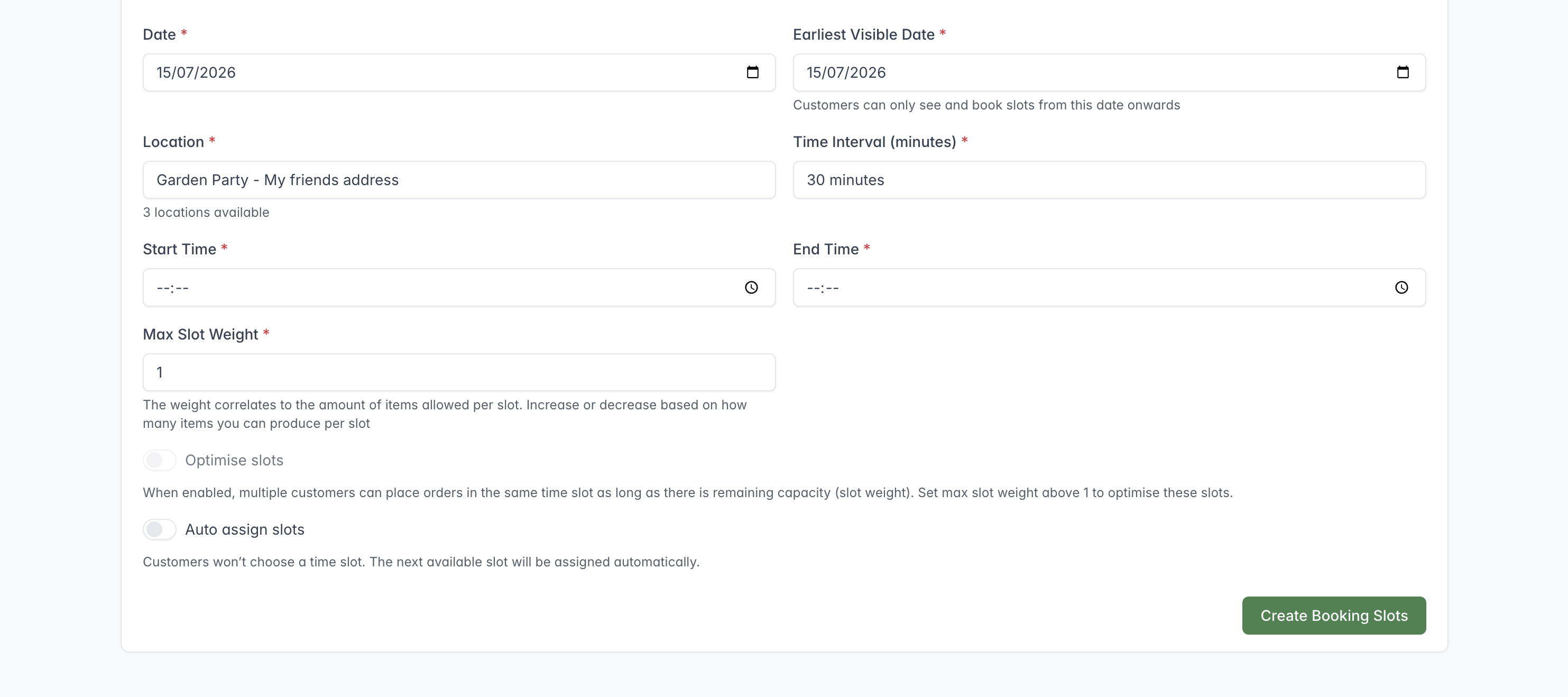
The Booking Slots screen creates customer collection times for a selected date and location.
This screen is labelled Booking Slots. In this guide, the customer collection times created on it are called collection slots.
To create slots:
- Select a date and location.
- Enter the start and end times.
- Choose the interval between slots.
- Set the earliest date on which customers can see them.
- Set the maximum slot weight or capacity.
- Choose ordinary, optimised, or auto-assigned behaviour where available.
- Create and review the resulting slots.
Collection slots and schedules use the current user's local time zone. If you are setting up a Location while in a different time zone, remember that the times you enter are based on where you are at that moment.
Slot weight and capacity
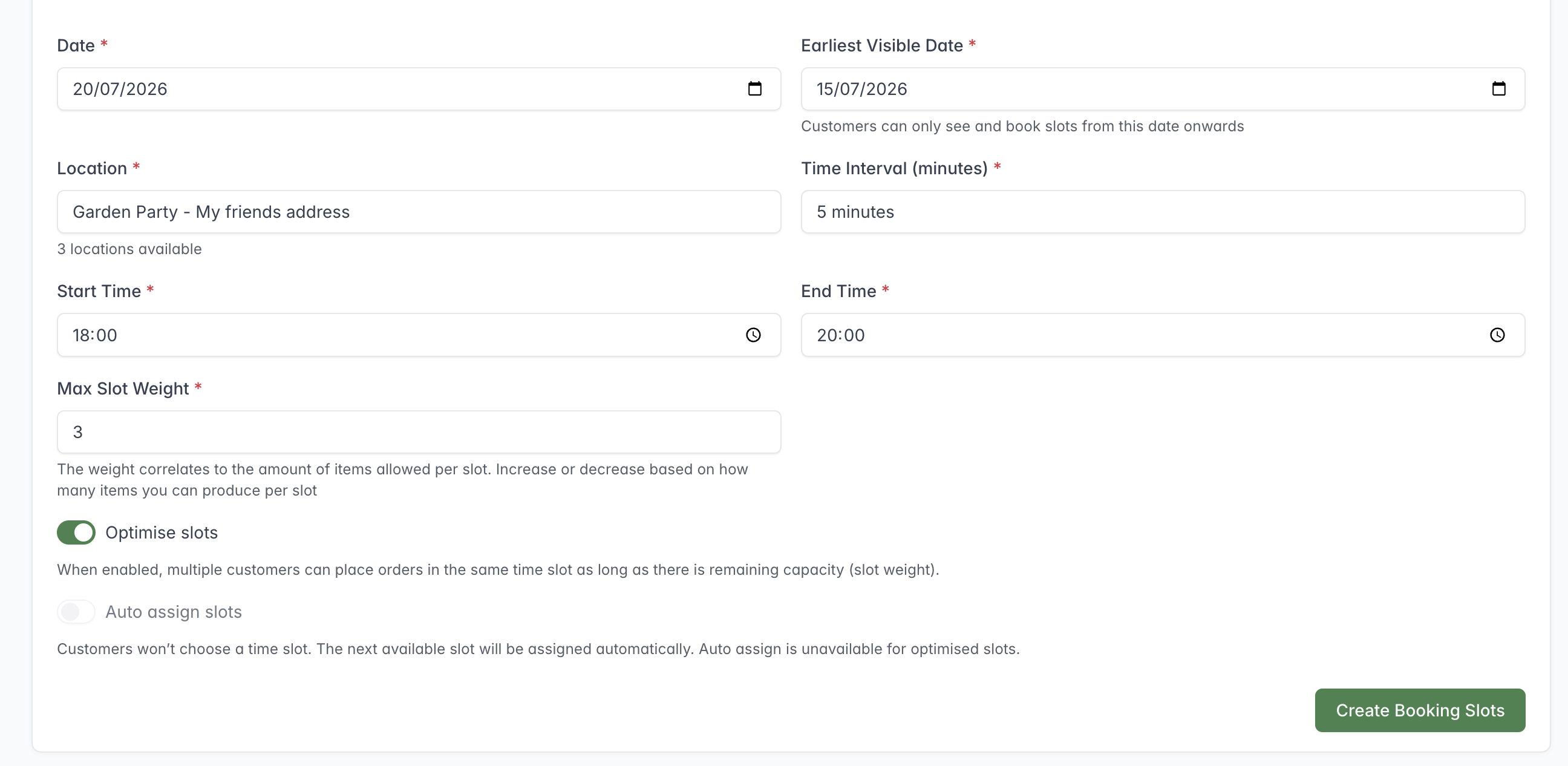
Optimised slots allow multiple orders in one collection window until their combined item weight reaches the maximum.
Each menu item can have a slot weight. A slot’s maximum weight is the total work it can hold. For example, a capacity of 10 could accept ten weight-1 items, five weight-2 items, or another valid combination.
Ordinary collection slots are commonly treated as a single collection opportunity. Optimised slots allow multiple customers to order into the same time window while capacity remains. Optimised slot capacity must be greater than one, and auto-assignment cannot be used at the same time.
Optimised slots can increase sales capacity but may create a busier preparation period. Start with conservative weights, observe real preparation times, and adjust.
Auto-assign slots
Auto-assignment lets the ordering process choose an appropriate slot instead of requiring the customer to choose one. It is separate from optimised capacity and cannot be enabled on an optimised slot.
Earliest visible date
The earliest visible date controls when a future slot appears to customers. It must be on or before the slot date. Use it for scheduled releases, such as opening weekend pre-orders on a particular date.
Managing existing slots
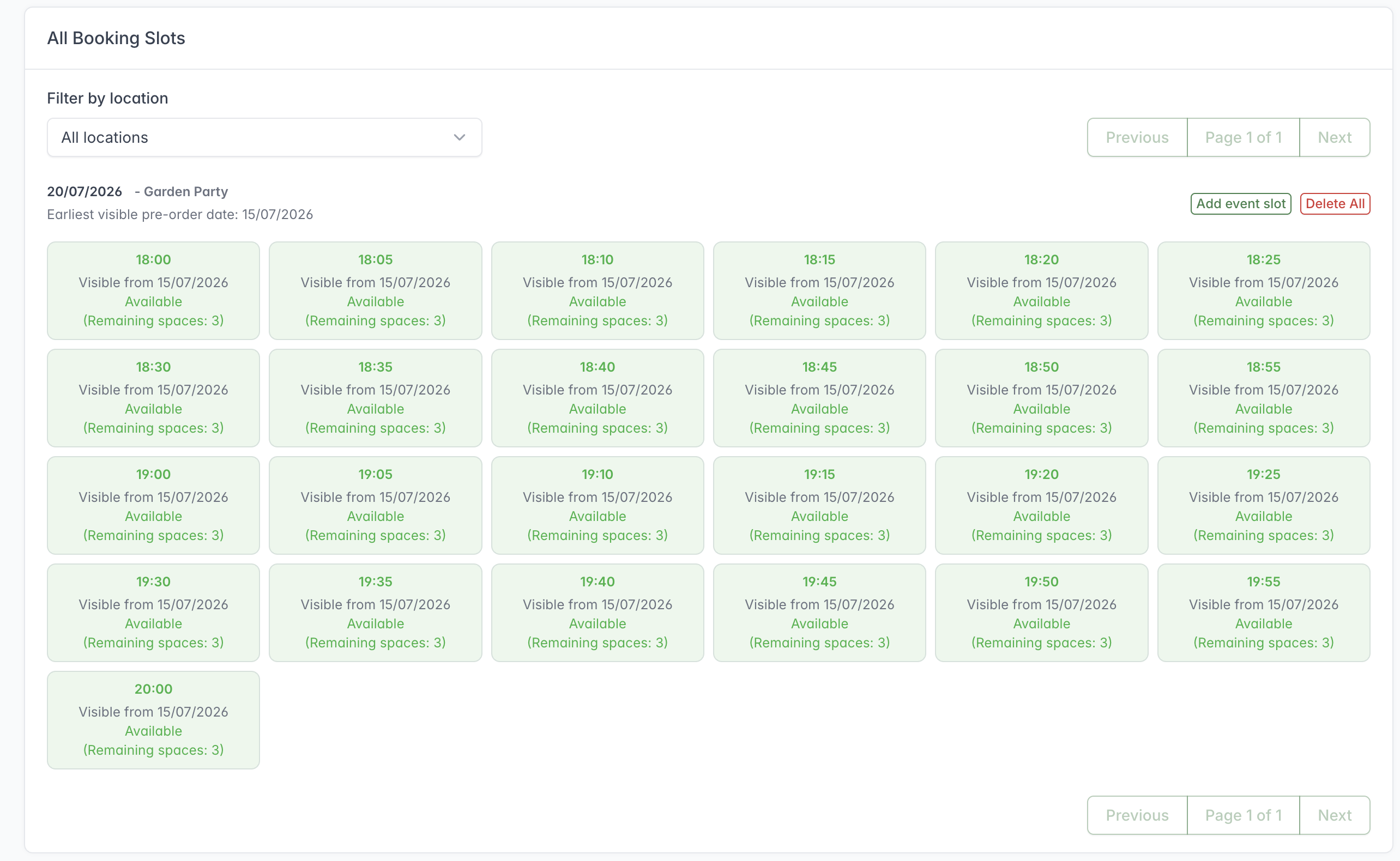
Each collection slot shows when it becomes visible, its availability and its remaining capacity.
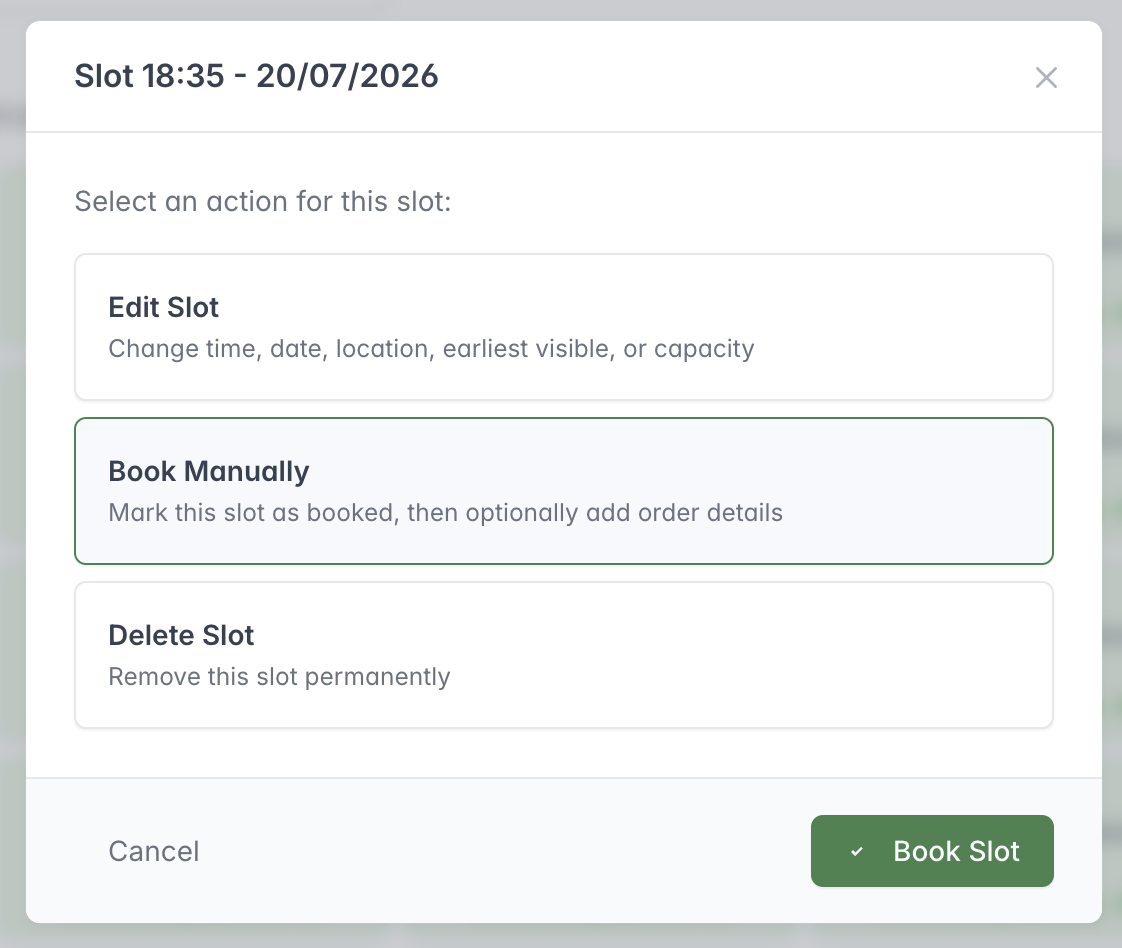
Select a collection slot to edit it, reserve it manually or delete it.
Existing slots are grouped by date and location. From a slot, staff can:
- edit time, date, location, earliest visible date, and capacity;
- manually book it;
- manually release a reservation;
- add a staff-created order with customer, item, option, and fulfilment details; or
- delete it.
An entire date’s slots can also be deleted. Deletion is permanent and should not be used for slots that already contain customer orders.
For an optimised time window, the manual reservation controls can reserve or release a chosen quantity up to the displayed limit.
Manual slot orders
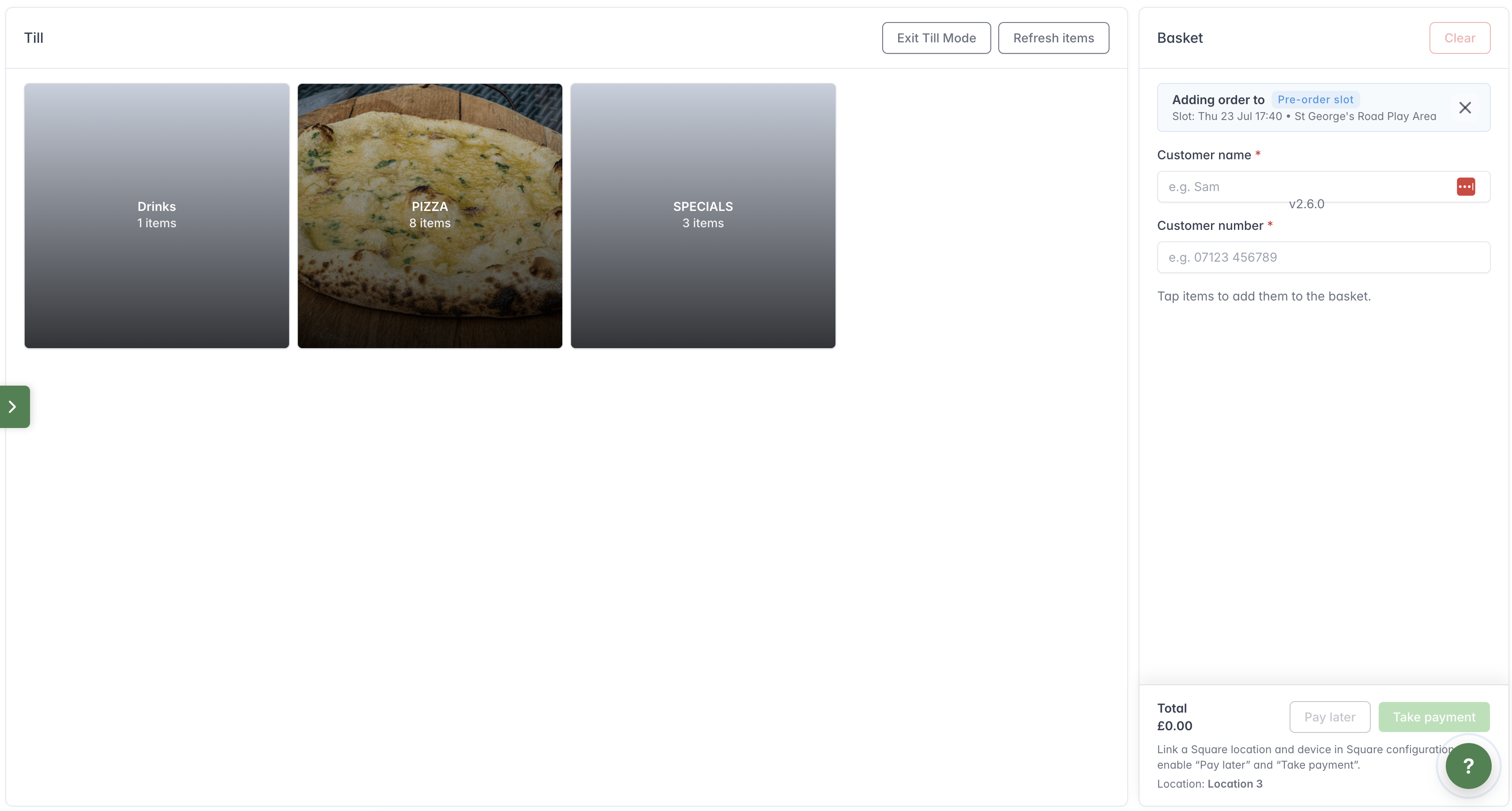
After choosing Book + add order, add items to the basket and enter the customer's details for the selected collection slot.
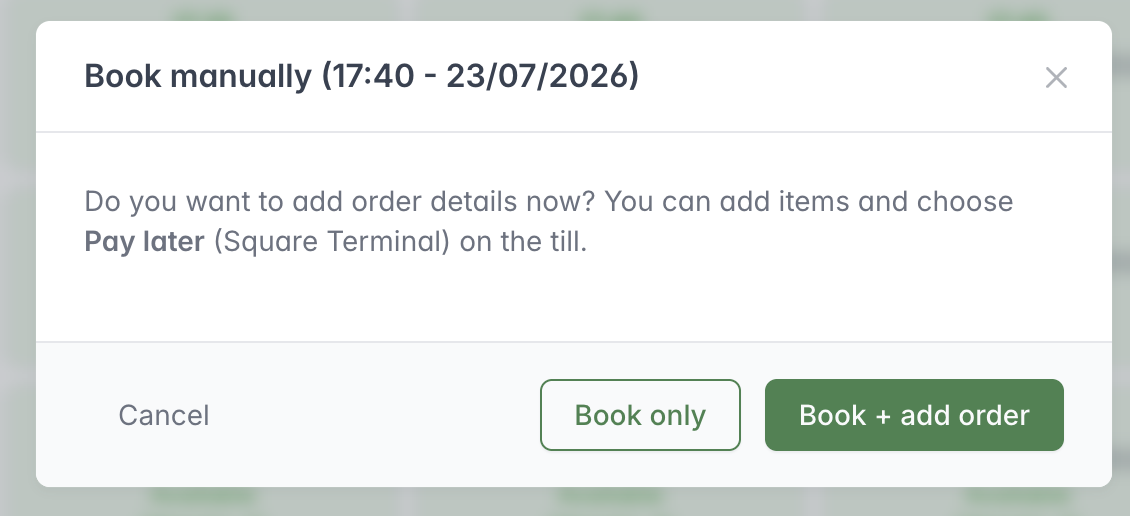
Choose Book only to reserve the collection slot, or Book + add order to continue to the till and record the customer's items.
After manually reserving a collection slot, staff can optionally add order details. Enter a required phone number, optional customer name, fulfilment type, items, quantities, and options. The order’s combined item weight must fit the slot.
The current flow checks Square connection status because staff-created slot orders may need Square payment. If Square is not connected, the system returns the operator to the slot workflow instead of completing that terminal-payment path.
Special event slots
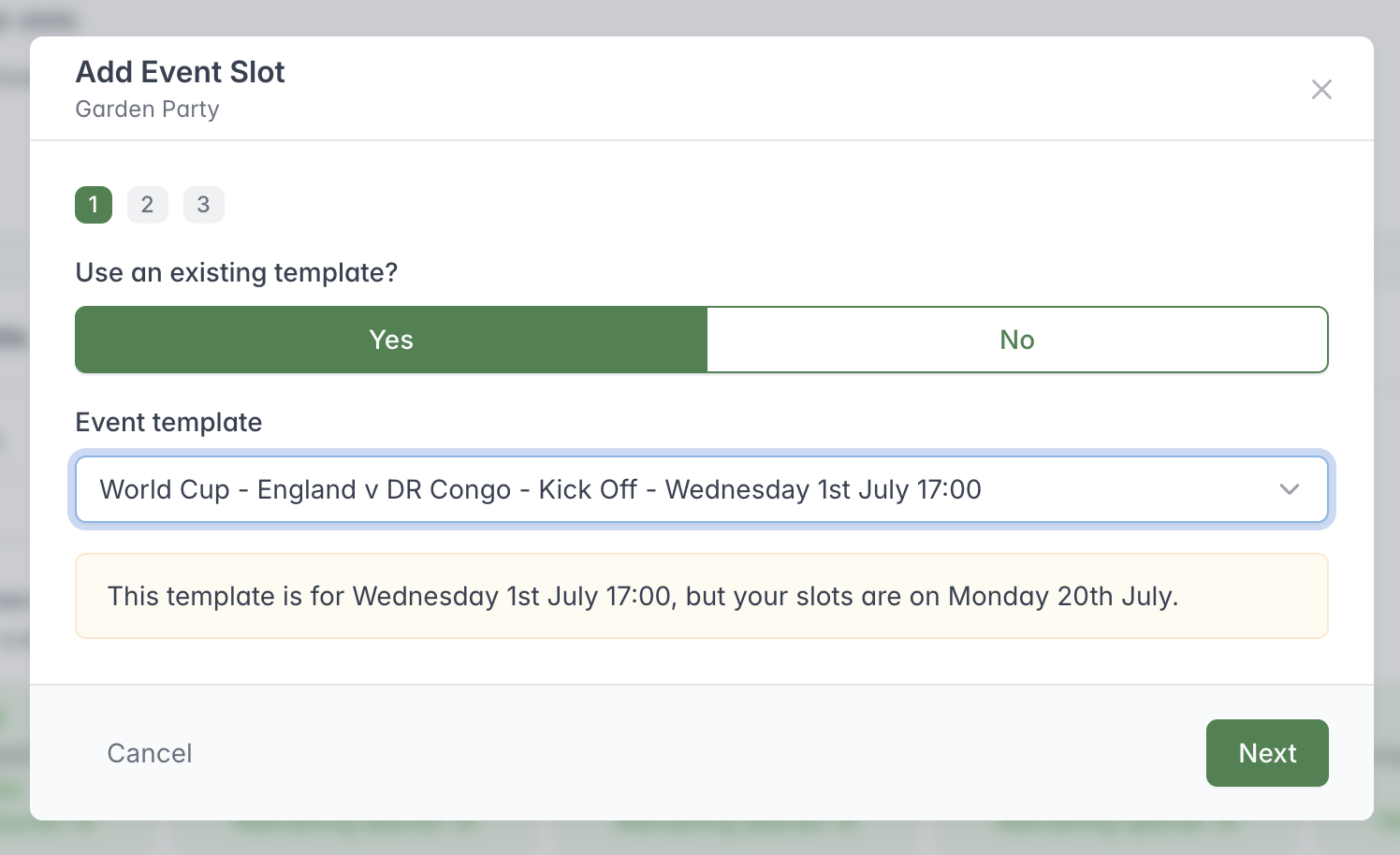
A special event slot can start from a saved template; check that the template date agrees with the collection-slot date before continuing.
Special event slots can use a saved template or custom content. Custom event information can include:
- display type, currently including a football fixture layout;
- event name;
- minimum lead time;
- supporting text and ordering text;
- up to two images;
- time and location; and
- optimised capacity.
Preview special event content in the customer app before publishing because image, name, and text length can affect the layout.
Calendar
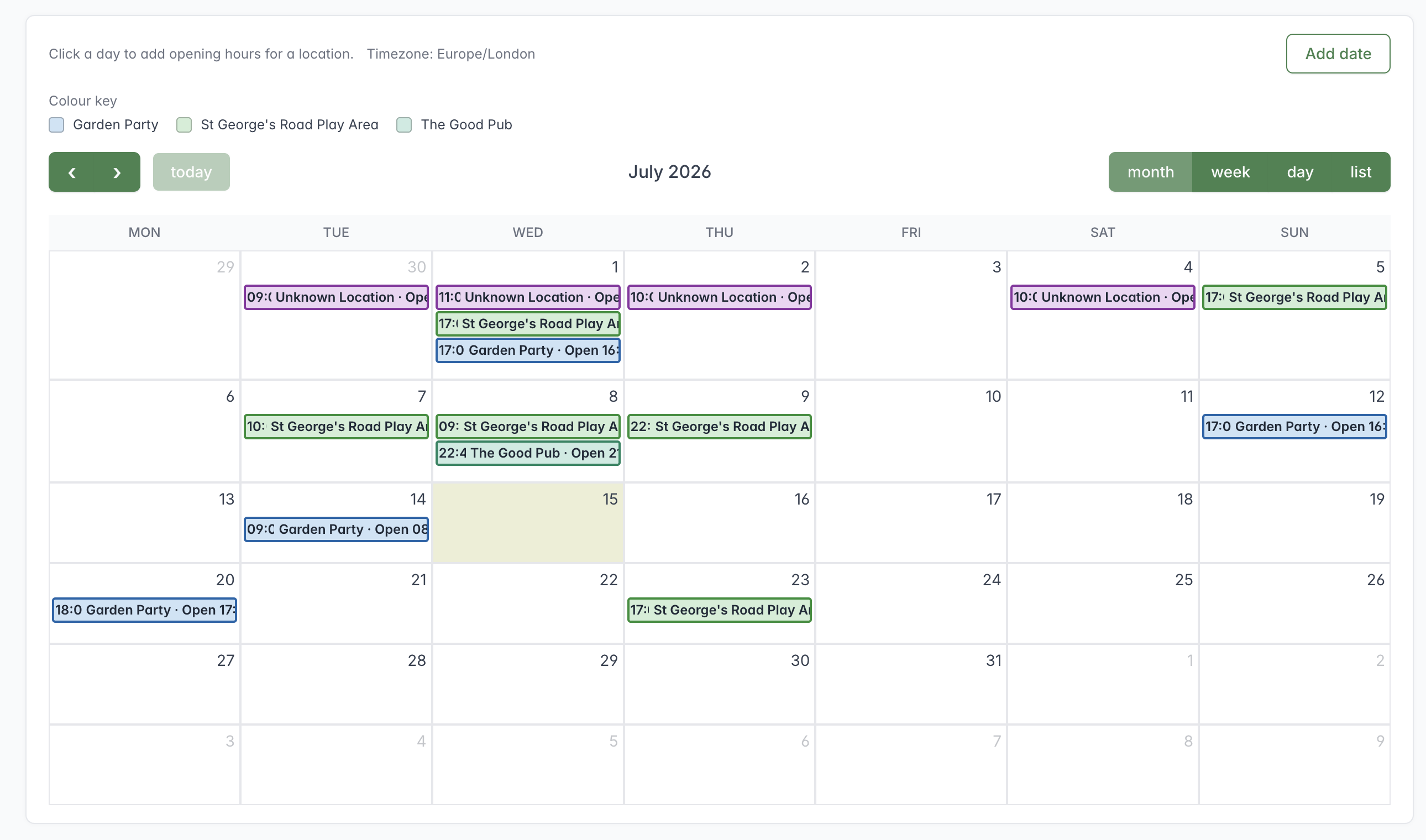
Use the colour key to distinguish Locations and switch between month, week, day and list views.
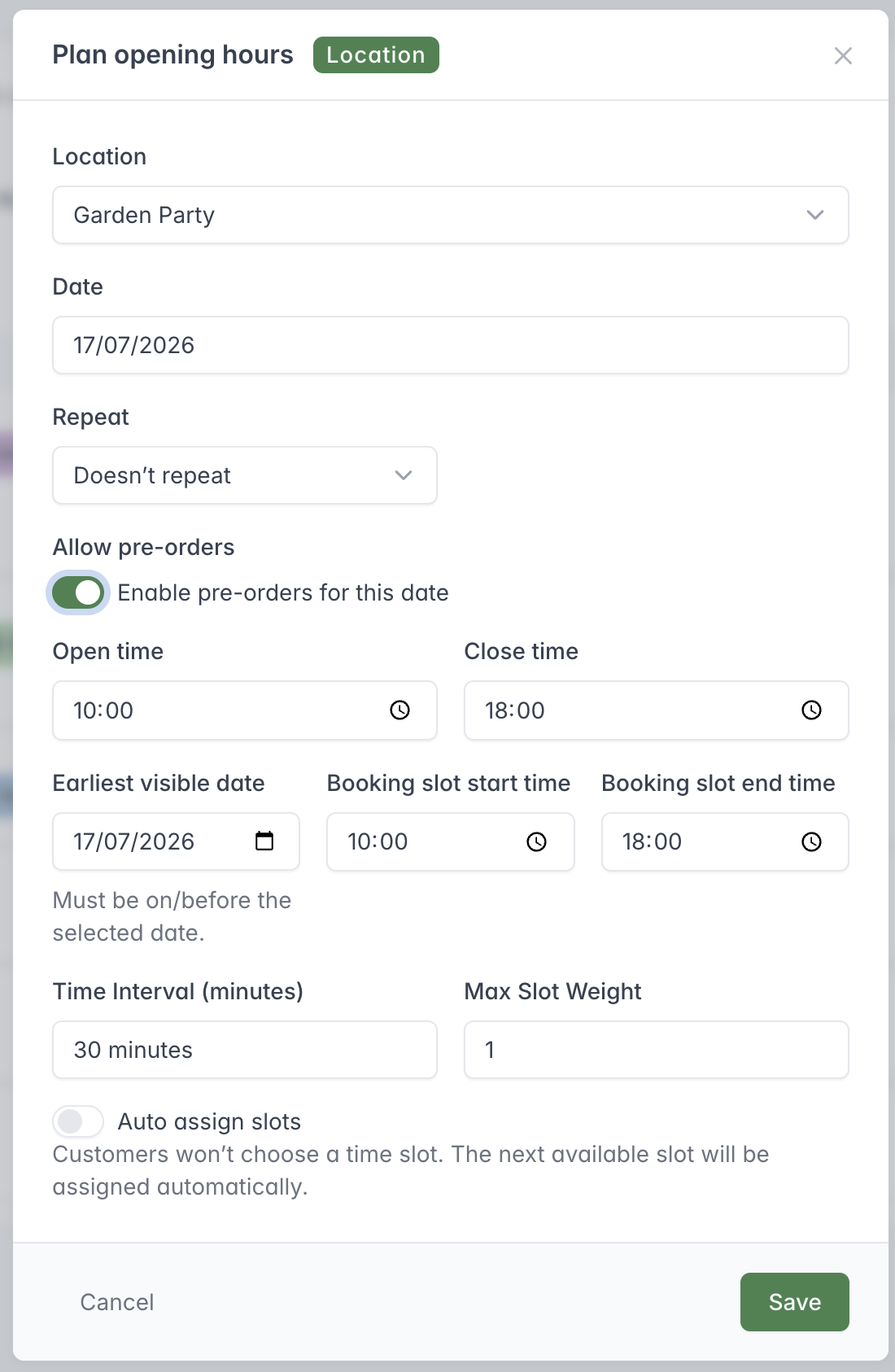
Plan a single or repeating opening date and define the collection slots customers can use during it.
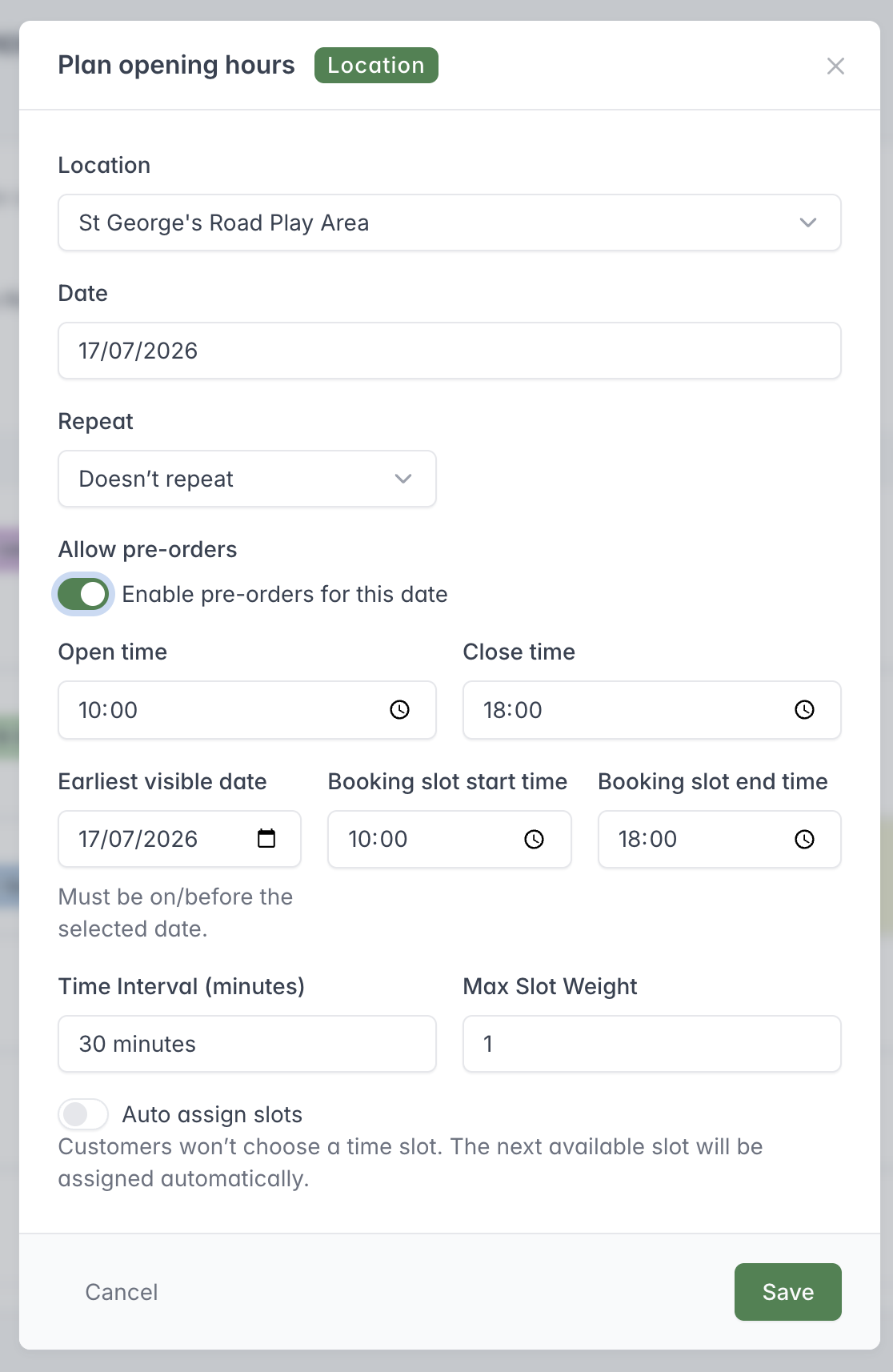
When planning an opening date, set the opening period and the collection-slot times, interval, visibility date and capacity.
The Calendar provides a visual schedule by month, week, day, or list view. It can create opening schedules and the collection slots within them.
For a schedule, choose:
- location and date;
- whether it repeats and the final repeat date;
- whether pre-orders are allowed;
- opening and closing times;
- collection slot start and end times;
- interval in minutes;
- earliest visible date for pre-orders;
- maximum slot weight; and
- auto-assignment where supported.
Repeated schedules can generate several dates at once. Excessively long repeat ranges are limited. When editing a slot entry from the calendar, changes can apply to all slots for that date and location; read the edit message before saving.
Clicking a calendar entry can show its collection slots and associated orders. Deleting a schedule is permanent.