
Appearance
Stock management
Last reviewed: 15 July 2026 · Beat The Queue version: 2.6.0 (11 July 2026)
Control item and option availability by location, and use stock pools for shared supplies or capacity.
Feature availability
The pages you see depend on your account features, connected equipment, and payment setup. Features marked Pro or described as account-controlled may not be included in every plan.
Stock concepts
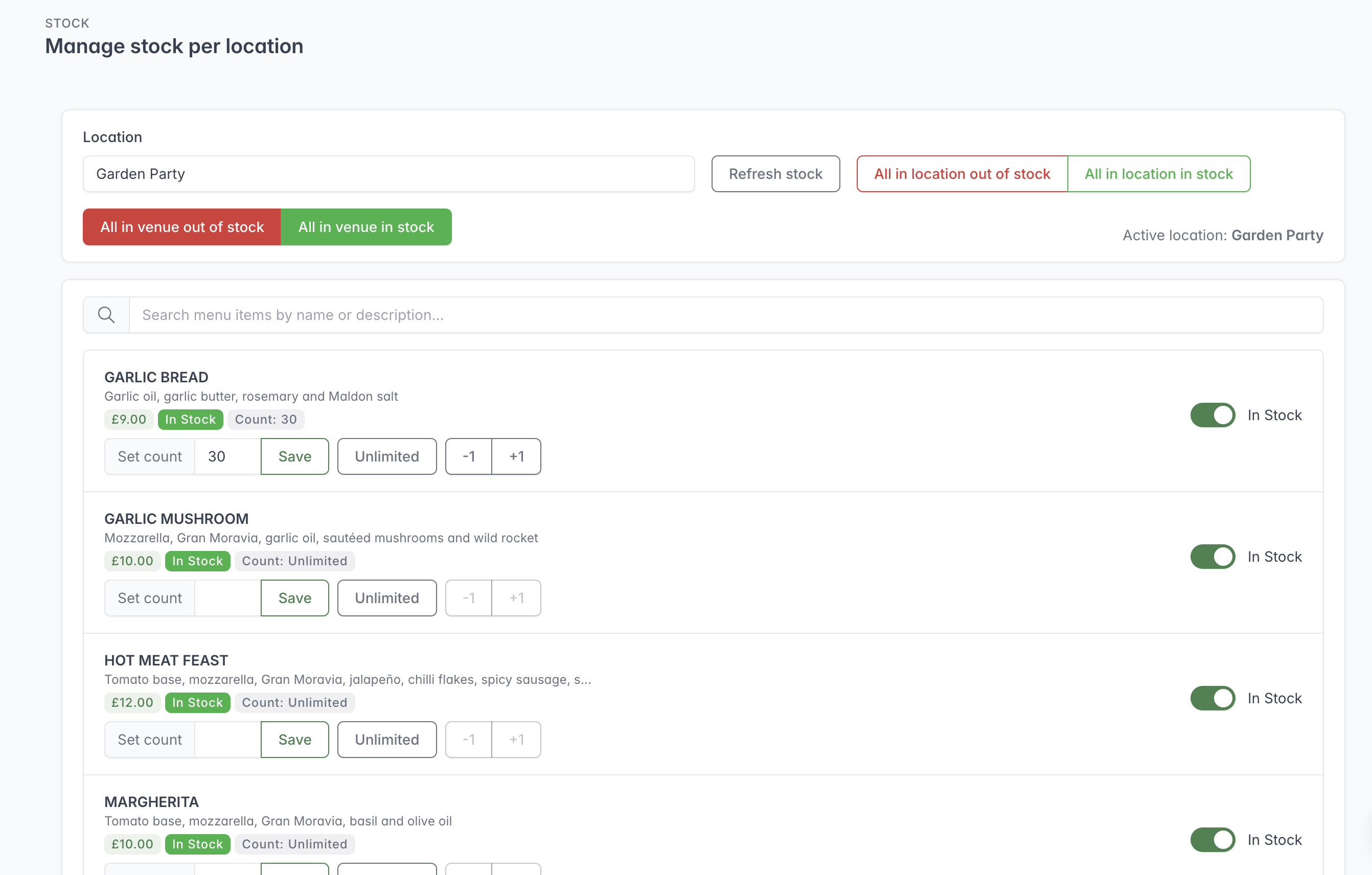
Select a location before changing stock, then set each item to a limited count, unlimited stock or out of stock.
Stock can be controlled at three levels:
- Items — for example, a burger or appointment type.
- Options — for example, a size, topping, or add-on.
- Stock pools — a shared underlying resource used by several items, such as bottles from one wine supply or a limited number of event places.
Stock is location-specific when Advanced Stock and locations are enabled.
Item and option availability
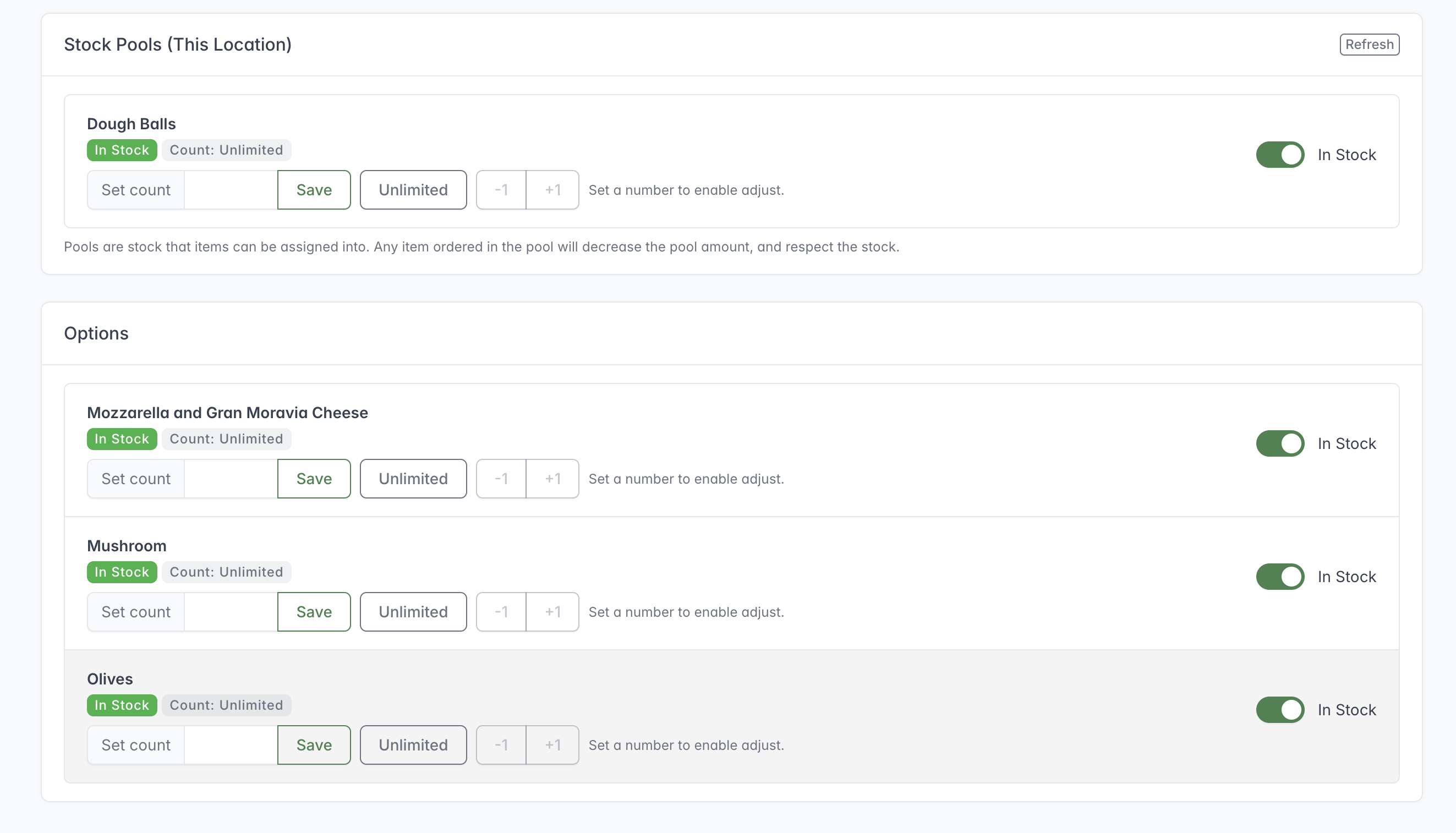
Option stock lets you control the availability of individual choices without taking the main menu item out of stock.
On the Stock screen, choose the correct location, search for an item, and mark it in or out of stock. Where count tracking is supported, staff can:
- set an exact count;
- increase or decrease the count; or
- clear the count to represent unlimited stock.
Options have equivalent in-stock and count controls. Use option stock when the base item is available but a particular choice is not.
Bulk actions can update several items. Review filters and location selection before using a bulk action.
Stock pools
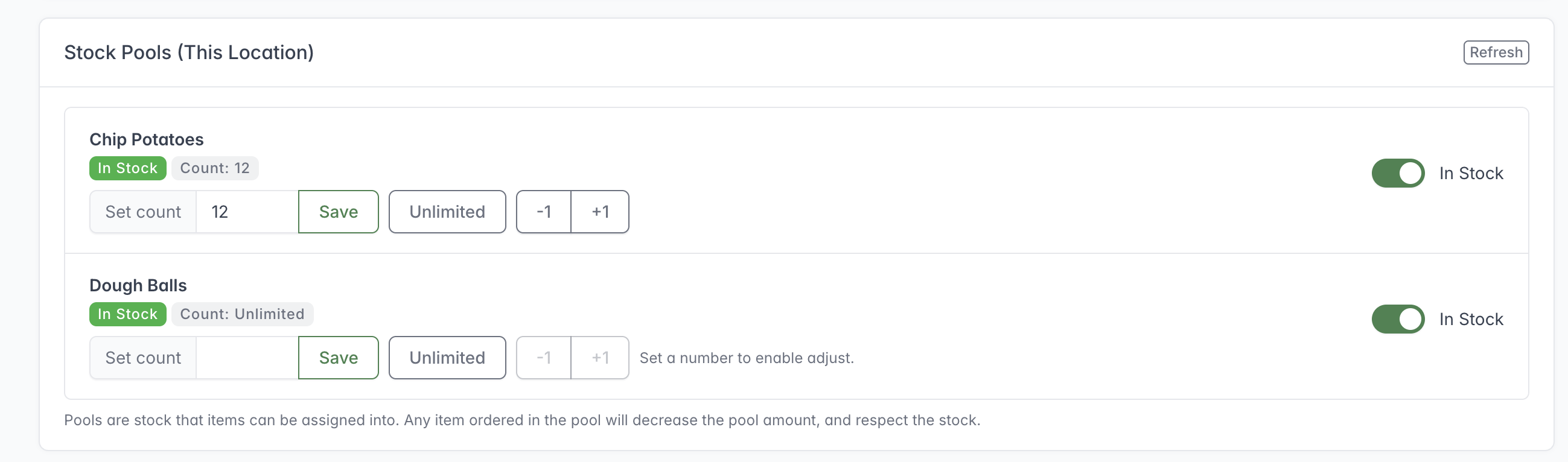
A stock pool tracks one shared quantity across every item assigned to it.
Create and name a stock pool, then assign it to all items that depend on the same supply. Set the pool’s availability or count for each location.
If a pool is out of stock at a location, linked items are treated as out of stock there. An item can be linked to more than one pool; teams should therefore check all linked pools when an item unexpectedly becomes unavailable.
Show a stock pool on Live Orders
Turn on Show Live for any stock pool that staff need to monitor during service. The pool and its current stock level will appear at the top of the Live Orders page, where the team can quickly change its count or mark it in or out of stock.
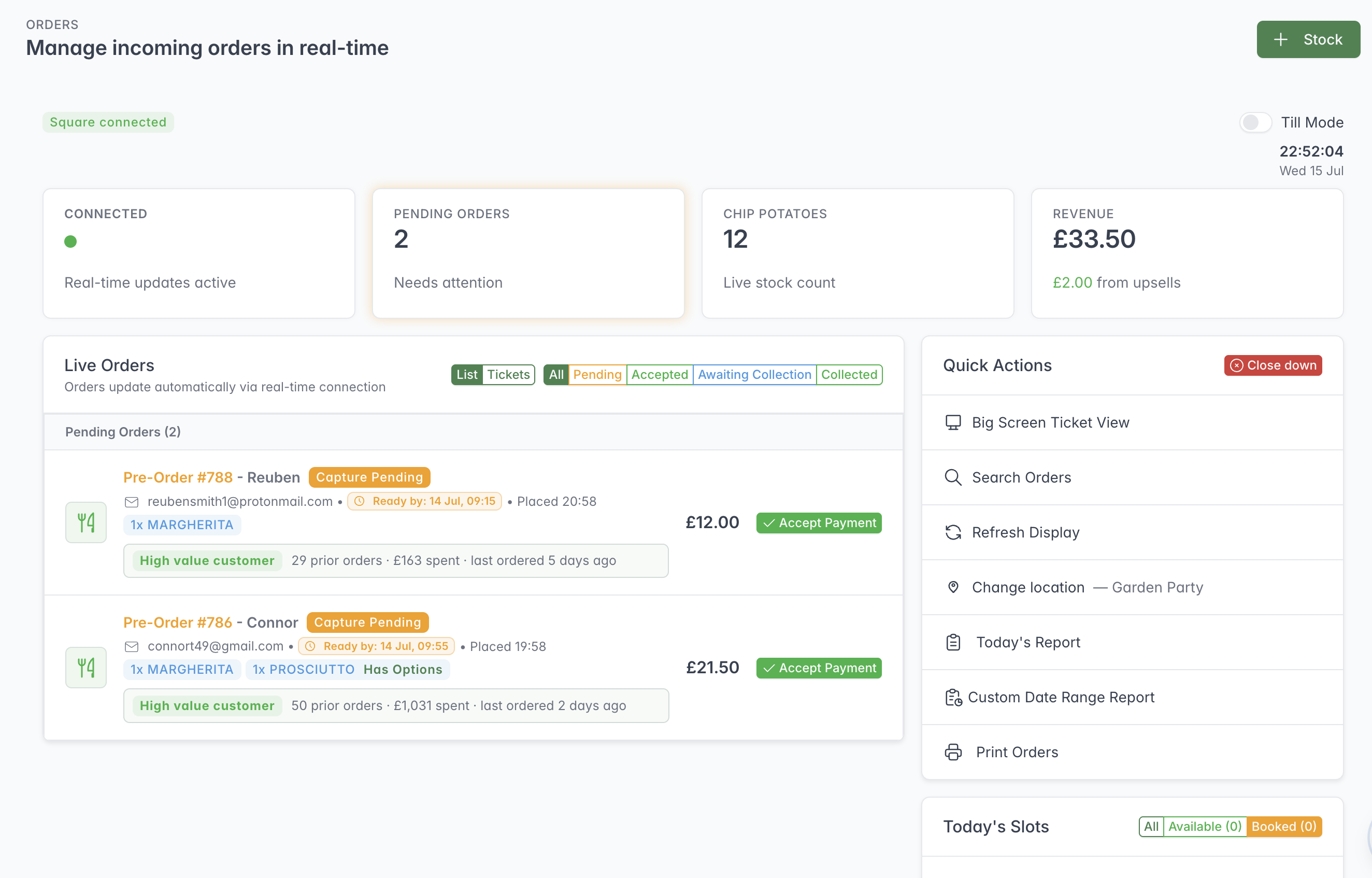
The stock pool selected with Show Live appears as a Live stock count card at the top of Live Orders.
Only enable Show Live for the pools that need frequent adjustment. This keeps the top of the Live Orders page focused on the stock that matters during service. A cleared count means unlimited stock; minus and plus controls only apply when the pool has a limited count.
Stock and order acceptance
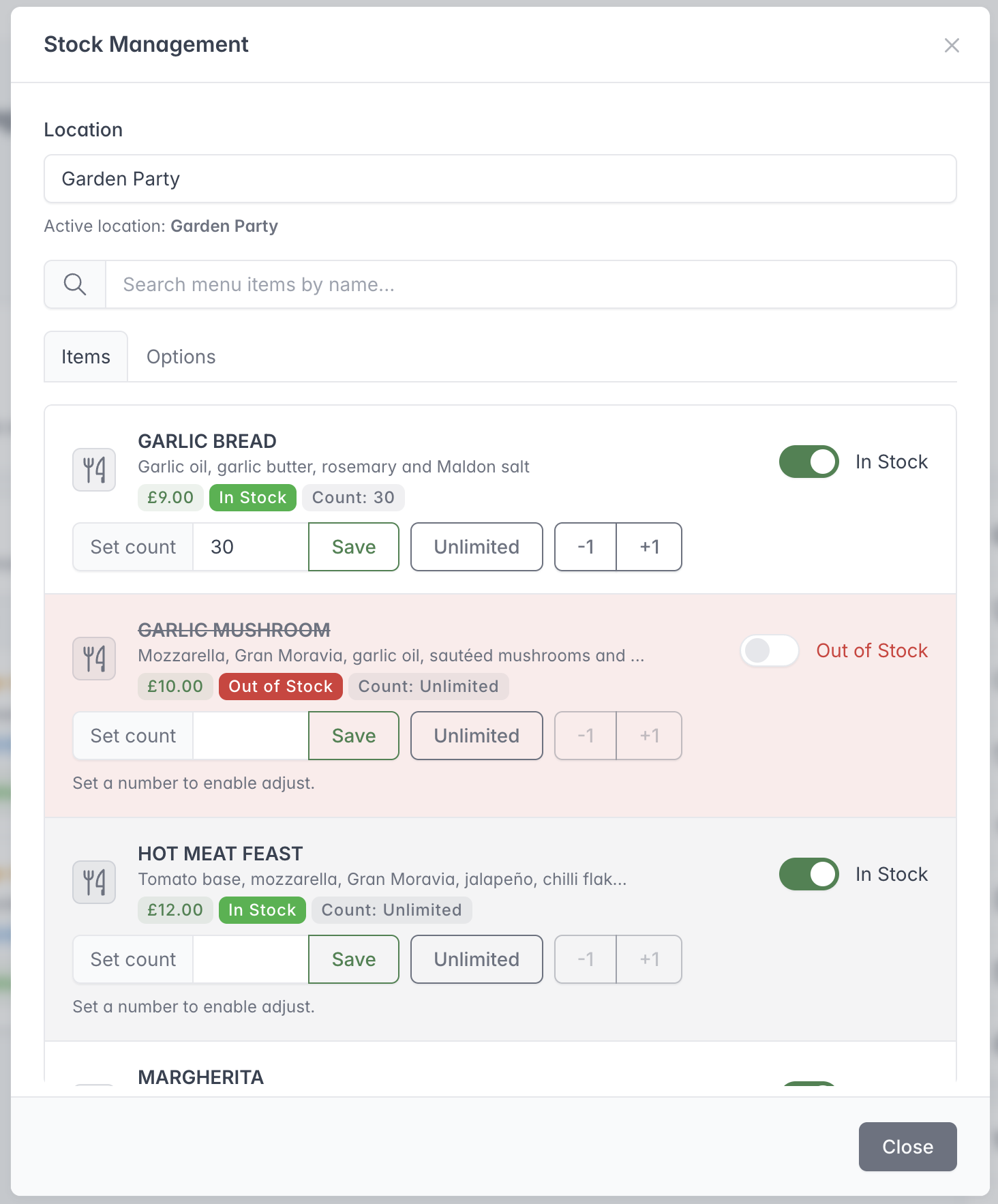
Staff can update item and option stock from Live Orders without leaving the service screen.
When an order is accepted, the system checks its items against current out-of-stock information and marks unavailable items for removal in the payment request. Keep the Live Orders stock state current and review pending orders before acceptance.