
Appearance
Account and customer experience settings
Last reviewed: 15 July 2026 · Beat The Queue version: 2.6.0 (11 July 2026)
Configure account behaviour, accounting exports, branding, and your customer ordering domain.
Feature availability
The pages you see depend on your account features, connected equipment, and payment setup. Features marked Pro or described as account-controlled may not be included in every plan.
Account settings (Venue Settings)
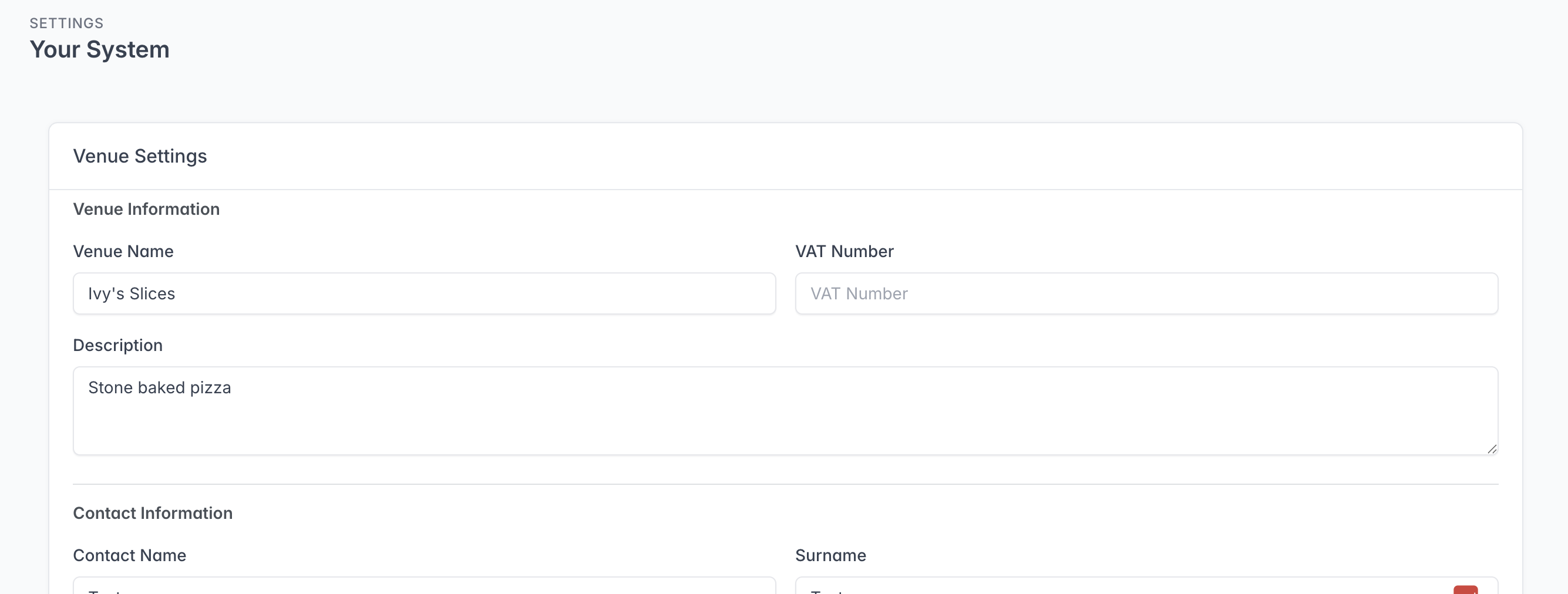
Add the information used to identify your Account and provide your contact details.
The Description is included in the enriched preview shown when you share your order link on social media, WhatsApp, and other services that support link previews. Use a short, customer-friendly description that explains what your business offers.
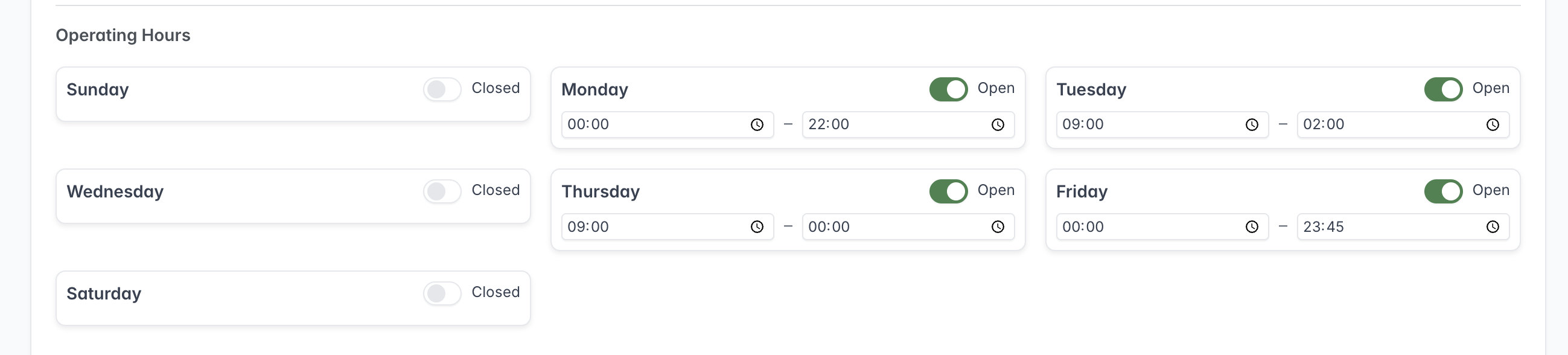
Operating Hours define when customers can place Order Now orders throughout the week.
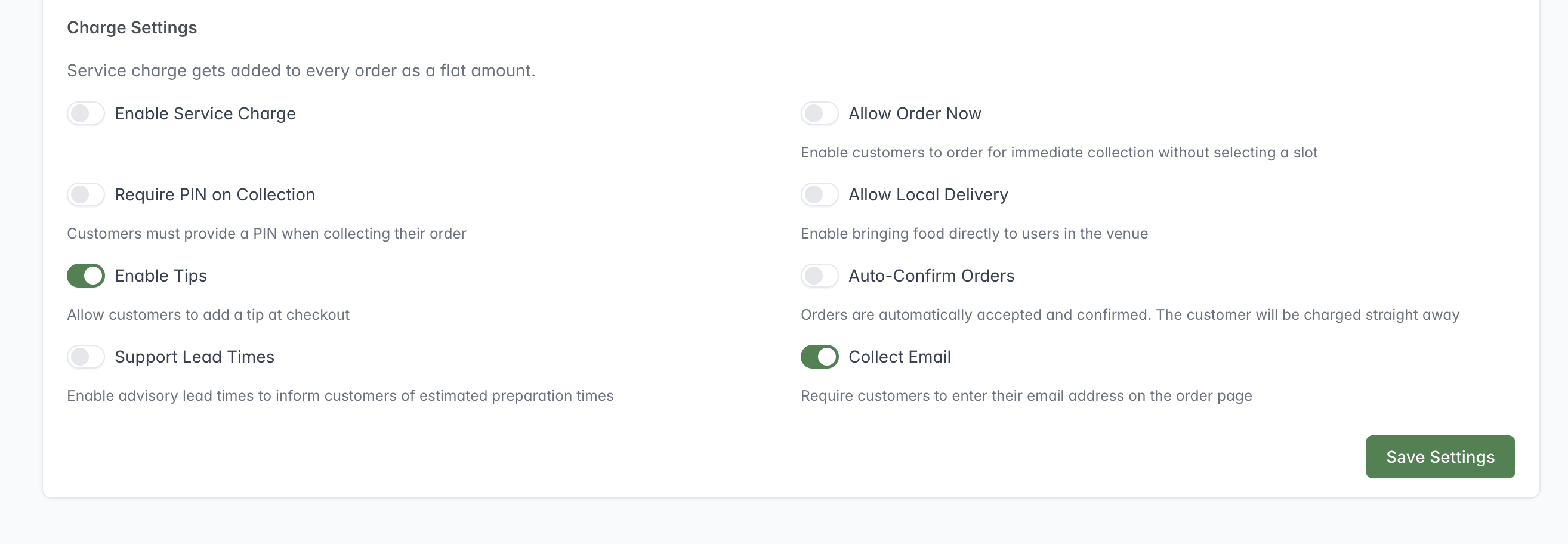
Charge Settings control how customers order and which details are required at checkout.
This page is labelled Venue Settings. These settings apply at account level and include:
- account name, VAT number, and description;
- contact name, surname, phone, email, and website;
- operating days and hours;
- a flat service charge;
- Order Now;
- PIN requirement on collection;
- local delivery at a location;
- customer tips;
- automatic order confirmation;
- advisory lead times; and
- required email collection.
Order Now
Allow Order Now lets customers order without selecting a Collection slot. These orders can only be placed during the configured Operating Hours, so use the two settings together to control when Order Now is available. Closing down disables this setting.
Local delivery
Allow Local Delivery lets you bring an order directly to a customer at the Location. For example, a food van trading outside a pub could deliver the food to the customer's table inside the pub. Enable it when your team can cover the required area.
Service charge
The service charge is a flat amount added to every order, not a percentage. A charge of 50p or less is recommended. Beat The Queue displays the charge to the customer during checkout.
Email collection
Collect Email requires customers to provide an email address on the order page. Beat The Queue uses the address to send them email updates about their Order.
Accounting Settings
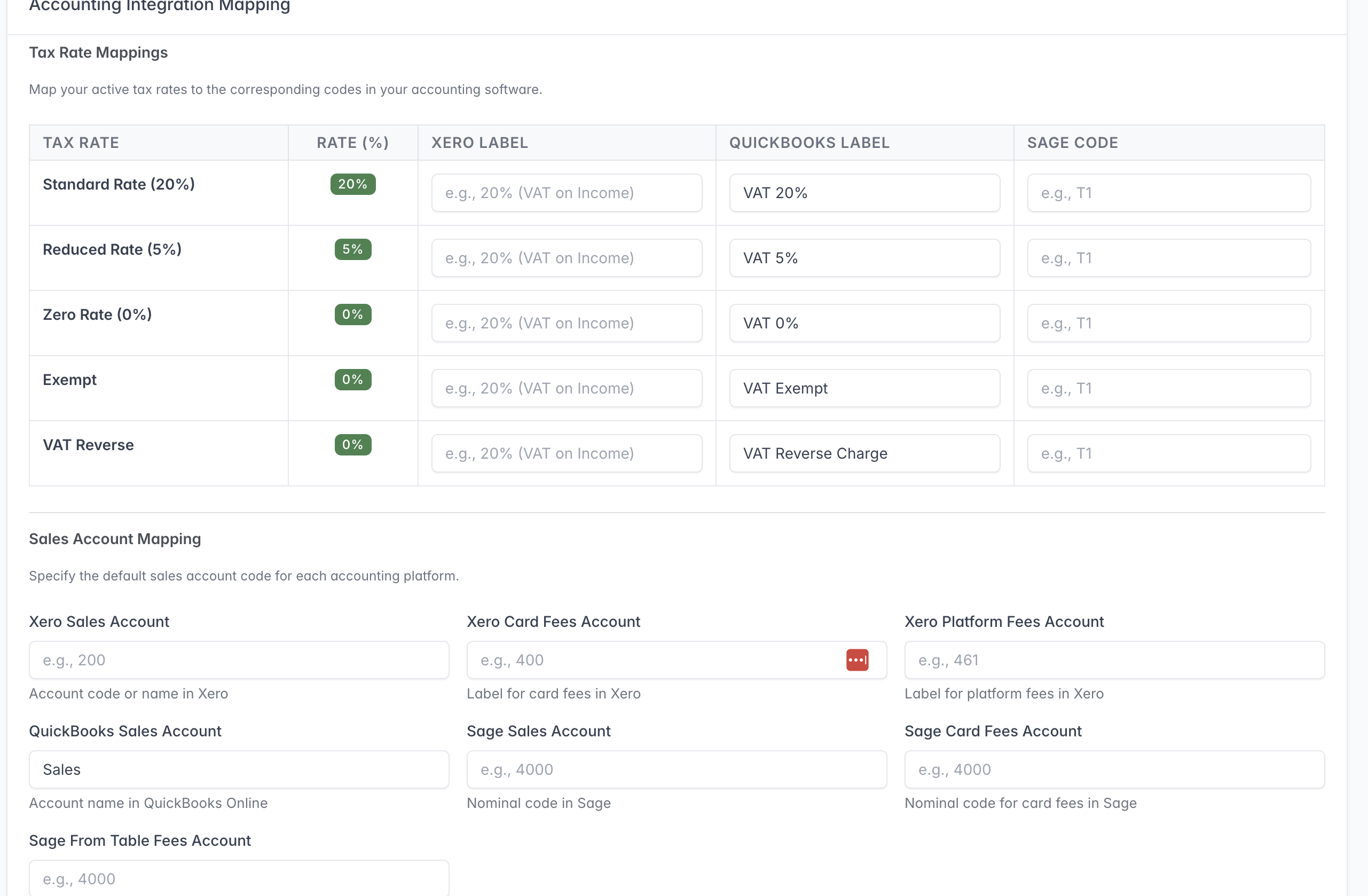
Map each Beat The Queue tax rate to the corresponding tax label or code in your accounting software.
Accounting Settings maps application tax and sales information to Xero, QuickBooks, and Sage.
For each tax rate, enter the exact label or code expected by each accounting package. Configure the sales account and, where shown, card-fee and platform-fee accounts. Sage uses nominal codes.
Labels can be case-sensitive. Test exports against a non-production or carefully reviewed import before processing a large period.
Branding Settings
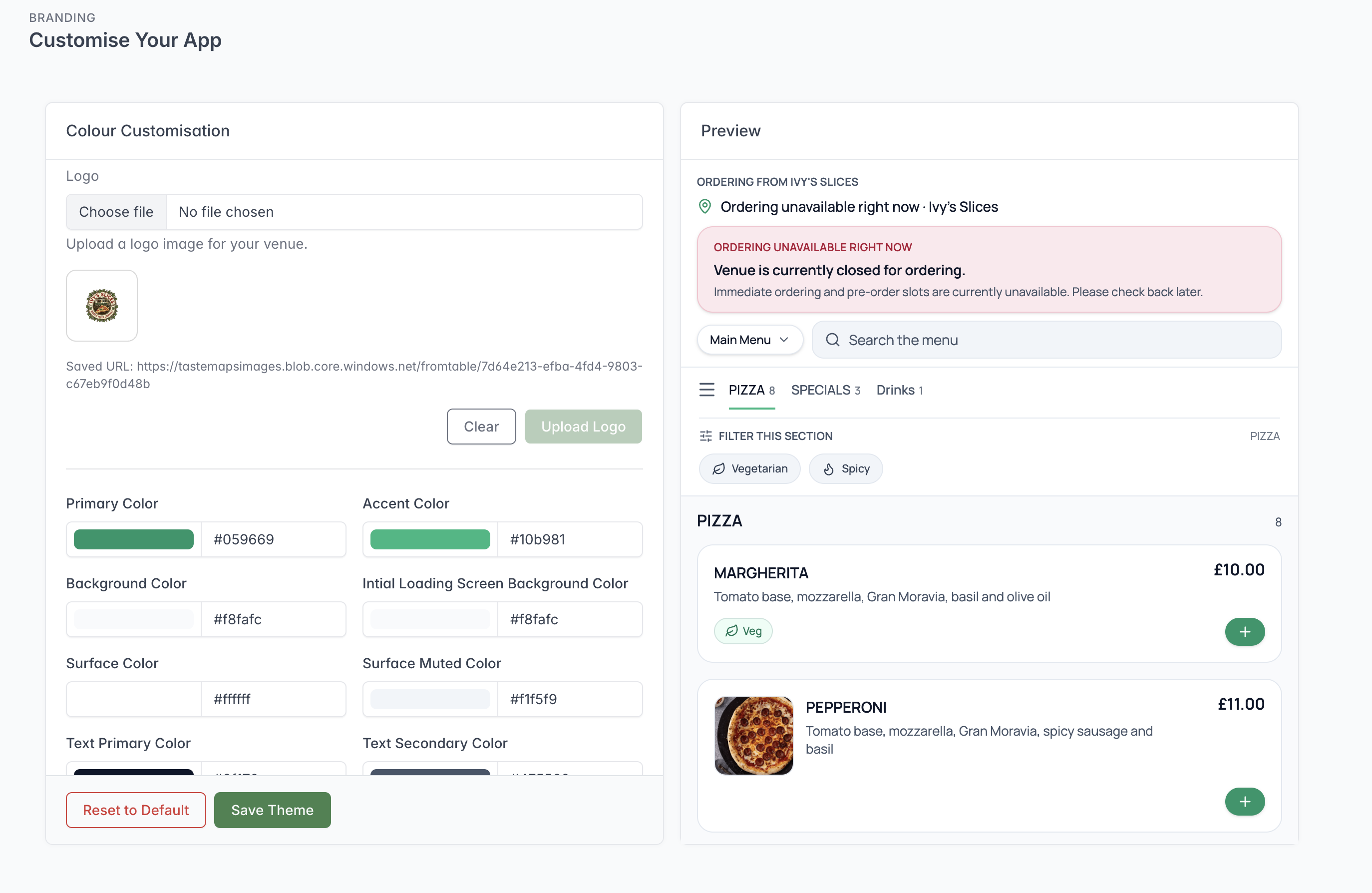
Branding controls appear alongside a live preview of the customer ordering site.
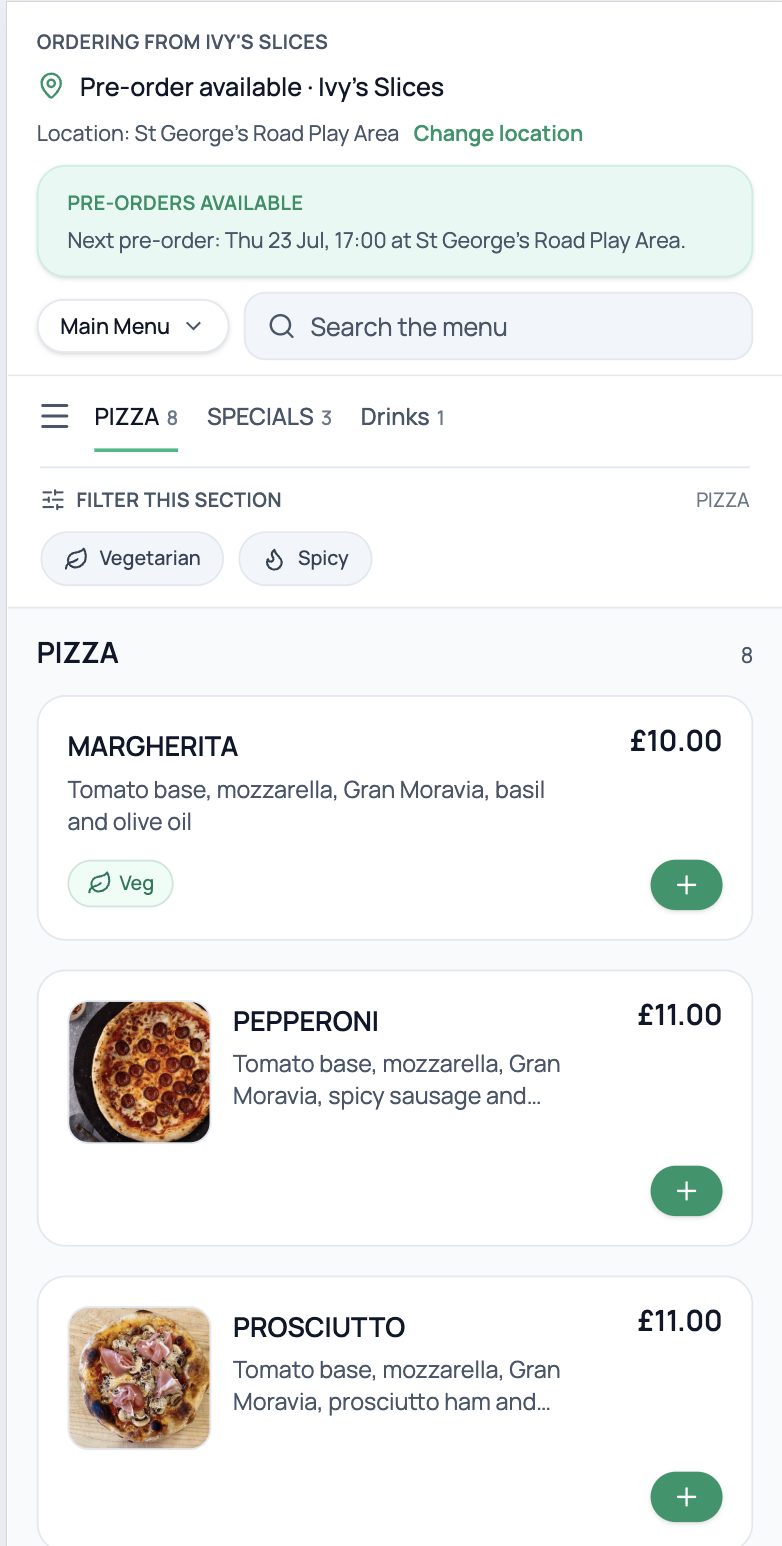
Check how the saved branding appears to customers on a phone.
Branding Settings controls the customer ordering experience. Staff can upload the account logo and set colours for:
- primary and accent elements;
- page and initial loading backgrounds;
- normal and muted surfaces;
- primary and secondary text;
- borders;
- primary and secondary buttons;
- chips;
- success, warning, and error states.
A live preview loads the current customer ordering URL. Save and inspect the app on both phone and desktop. Check text contrast, error visibility, button readability, image backgrounds, and logo cropping. Reset to Default overwrites the current colours after confirmation.
Custom domains
A custom ordering domain lets customers use a branded hostname such as order.example.com.
Follow the instructions shown on screen to configure and verify the domain. You should be comfortable adding and updating DNS records with your domain provider before starting. DNS changes can take time to take effect.