
Appearance
Payments and integrations
Last reviewed: 15 July 2026 · Beat The Queue version: 2.6.0 (11 July 2026)
Choose a payment provider, complete account setup, understand customer fees, and connect Square tools.
Feature availability
The pages you see depend on your account features, connected equipment, and payment setup. Features marked Pro or described as account-controlled may not be included in every plan.
Choosing a payment processor
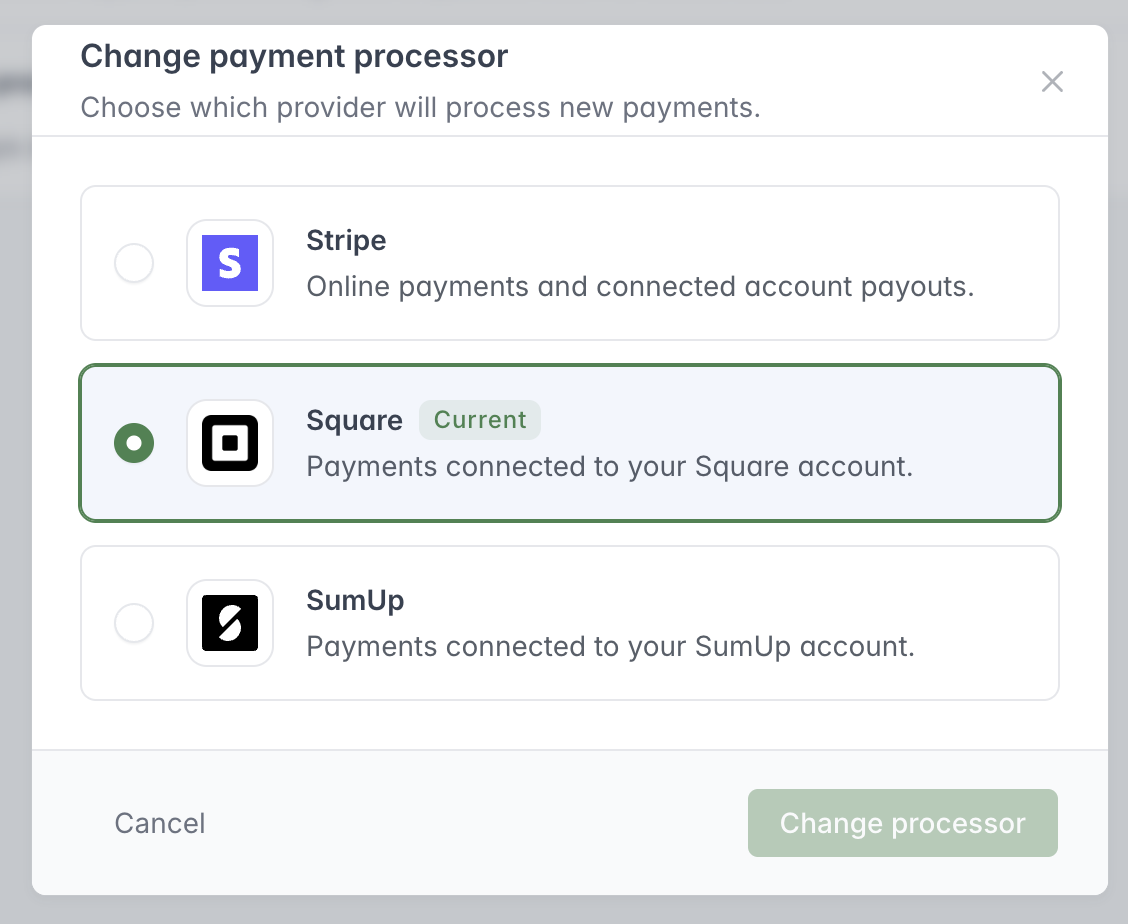
The current processor handles new payments. Stripe, Square and SumUp are available in Payment Settings.
Payment Settings recognises:
- Stripe;
- Square; and
- SumUp.
Stripe is the default payment processor. You can connect and use a supported Square or SumUp account instead.
Payment processing prices and transaction fees are set by Stripe, Square or SumUp under your agreement with that provider. Beat The Queue does not set or control those charges. Check the current terms and pricing directly with your chosen provider.
The active processor handles new payments. Changing processor is a significant operational change: confirm account setup, settlement arrangements, terminal configuration, customer checkout testing, and any outstanding orders before switching.
SumUp payment limitations and application fees
SumUp does not support placing a hold on a customer's card and capturing the payment when the venue accepts the order. When SumUp is the active processor, the venue must accept the order and take payment straight away.
SumUp also does not allow Beat The Queue to deduct its application fees automatically from each payment. Beat The Queue therefore sets up a direct debit mandate in the system for venues using SumUp; the venue does not need to take any additional steps to set it up.
The mandate is used only to collect Beat The Queue application fees. Before making a collection, Beat The Queue sends the venue an email and an invoice showing the amount due. Application fees are not collected until seven days after the related customer payments, giving the venue's funds time to settle first.
Stripe and Apple Pay
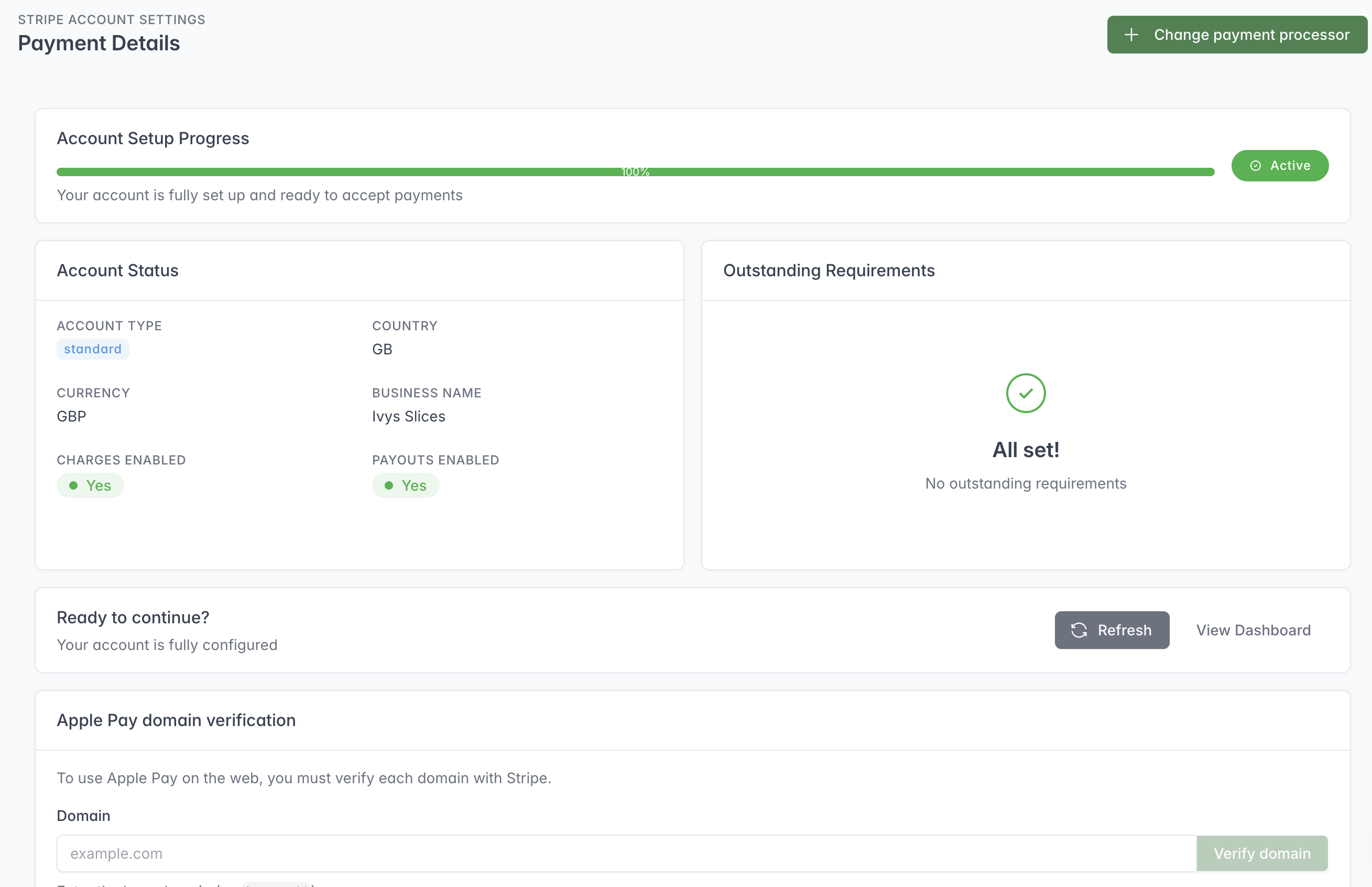
Stripe is the default processor and is already configured for your Beat The Queue account.
You do not need to create or connect a Stripe account from this page. The Stripe status area confirms that payments and payouts are active.
To support Apple Pay, register the domain customers use to open your ordering page in the Apple Pay domain verification section:
- If you use the standard Beat The Queue ordering page, register
order.beatthequeue.co.uk. - If you use a custom domain, register that custom domain instead.
If the ordering-page domain changes, register the new domain so Apple Pay continues to work there.
Customer platform fees
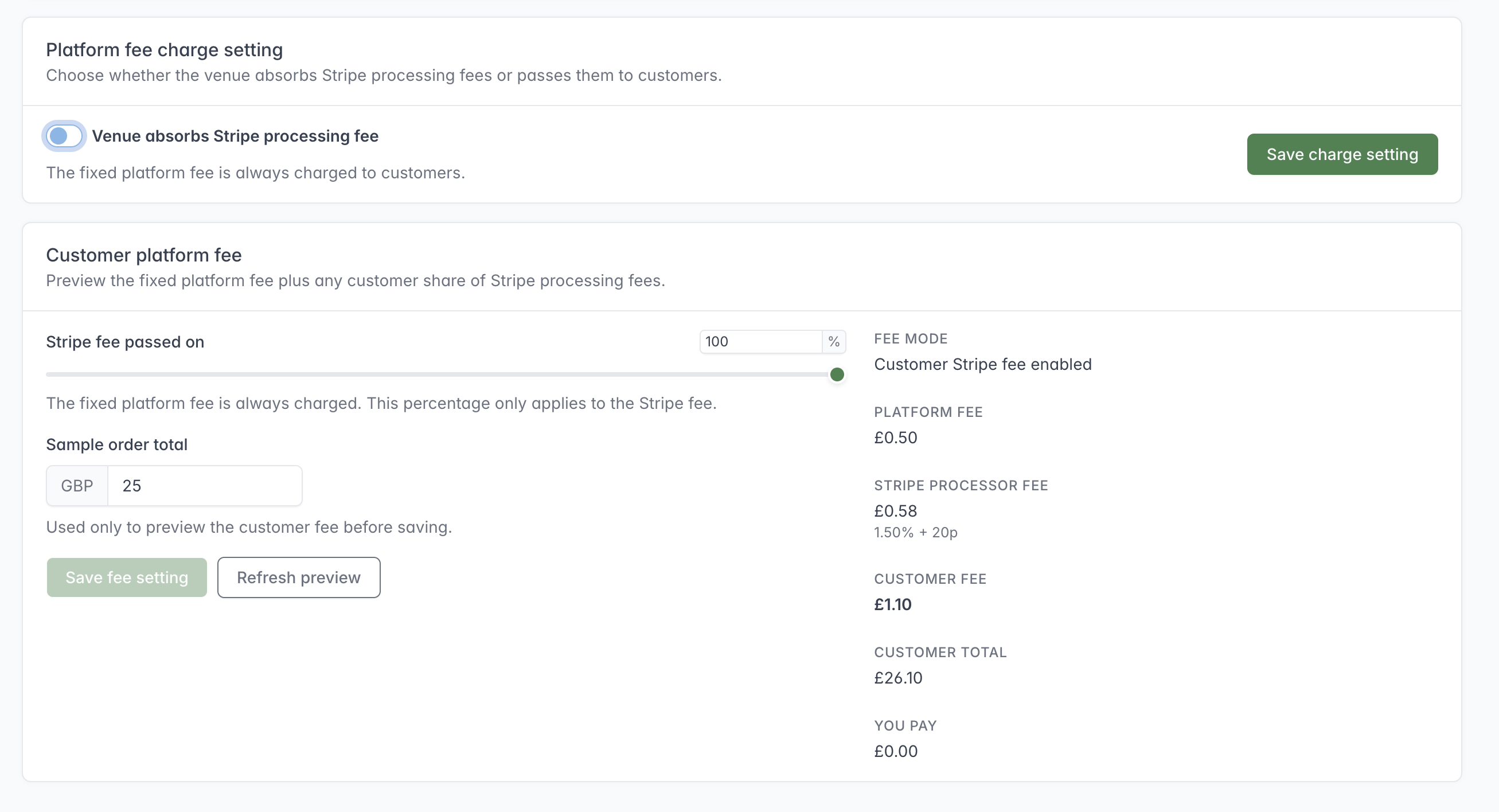
Use the sample order total to preview the platform fee, Stripe processor fee and resulting customer total before saving.
Payment Settings lets the account holder choose whether the business absorbs the processor fee or passes a share to customers. The fixed platform fee is always charged to customers according to the current interface.
Use the sample order total to preview:
- fixed platform fee;
- processor percentage and fixed fee;
- the share passed to the customer; and
- the resulting customer fee.
Square setup wizard
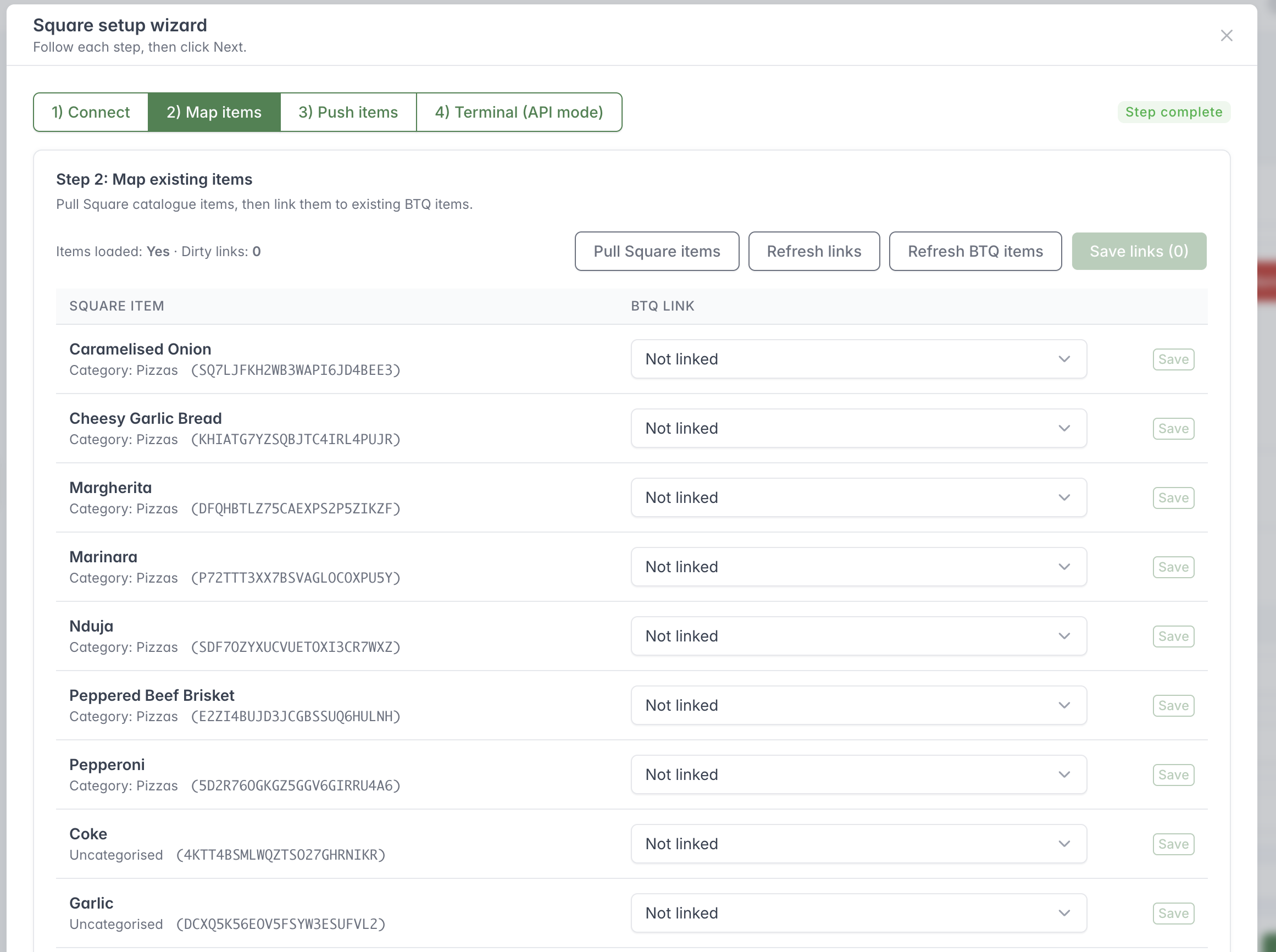
Follow each Square setup step in order and save any item links before moving on.
The Square integration includes a guided setup:
- Connect — authorise the Square account.
- Map items — pull Square catalogue items and link them to existing Beat The Queue menu items.
- Push items — optionally create or update selected Beat The Queue items in Square.
- Terminal — choose or pair the Square Terminal used for staff payments.
Save item links after checking that the products in both systems match.
Pairing a Square Terminal
Square Terminal setup video coming soon
A step-by-step video covering terminal pairing, API mode and sending an order to a Square Terminal will be added here soon.
Select a Square location, create a named pairing code, enter the code on the Square Terminal, and refresh the paired-device list. Then select the paired device.
The terminal normally needs to be in Square’s API mode. The exact device wording varies with the Square model and software version.
Square catalogue linking and push
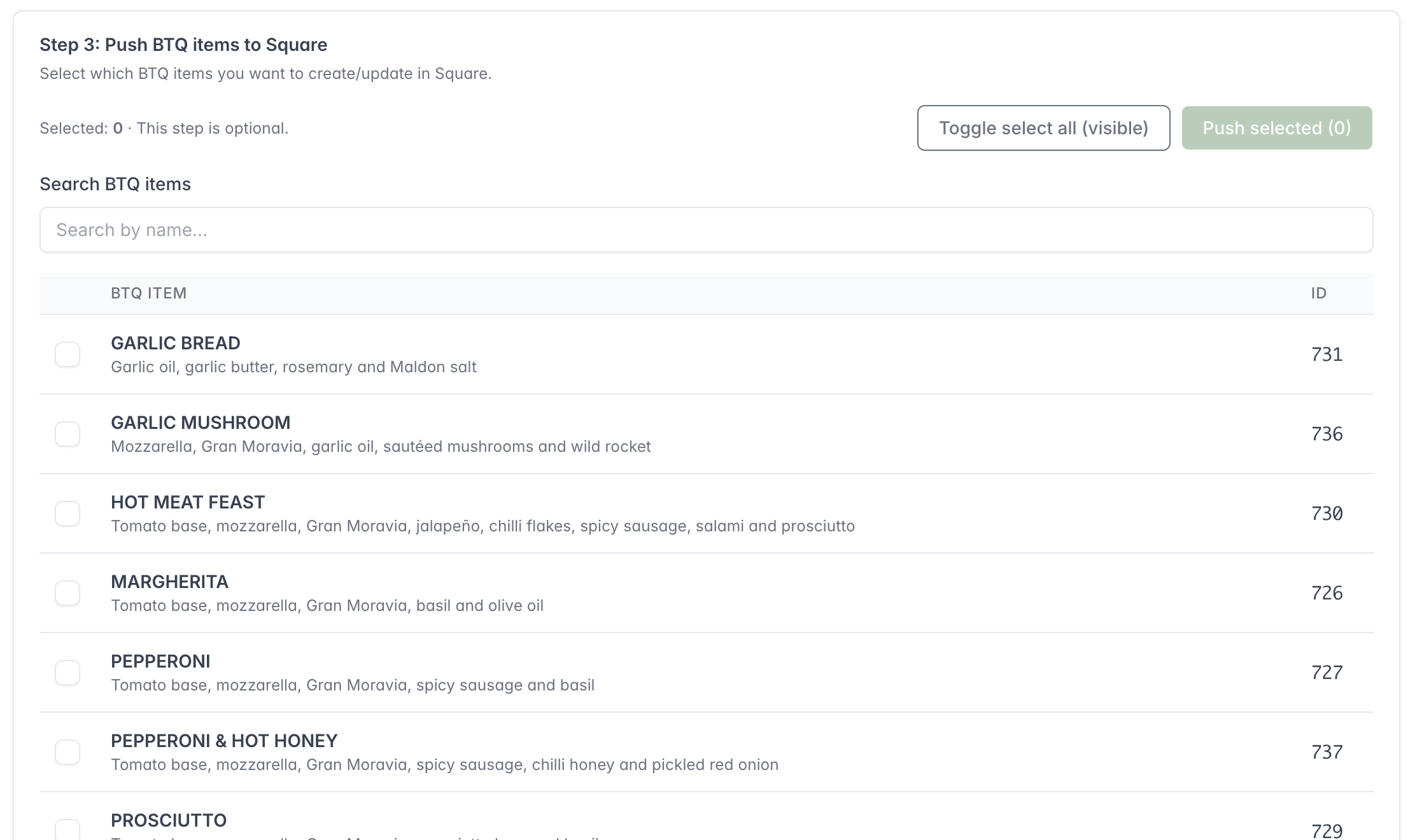
Select only the Beat The Queue items you want to create or update in Square, then review the results in your Square catalogue.
The integration can:
- pull Square catalogue items;
- link a Square item to an existing Beat The Queue menu item;
- preview and link modifier choices;
- save or clear link changes;
- select Beat The Queue items to push; and
- create or update the selected items in Square.
Review names, prices, tax and option mappings in both systems before using catalogue changes with live orders.
Catalogue push availability can vary by account. If the action is available, test it with a small demonstration item and review the result in Square before using it with a live catalogue.
Square fee preview
The Square preview shows the applicable Beat The Queue fee alongside Square fees. Treat the preview as guidance and check it against your current agreement because pricing can change.