
Appearance
Printing, devices, and locations
Last reviewed: 15 July 2026 · Beat The Queue version: 2.6.0 (11 July 2026)
Connect Print Link, route documents to printers, and assign browsers to the right operating locations.
Feature availability
The pages you see depend on your account features, connected equipment, and payment setup. Features marked Pro or described as account-controlled may not be included in every plan.
Print Link
A Print Link is a small device made by Taste Maps for Beat The Queue. It is powered by USB-C and connects to the Location's Wi-Fi network.
The device acts as a bridge between Beat The Queue's cloud service and compatible printers on the same local network. This allows print jobs to be sent remotely from any device using Beat The Queue, without that device needing a direct connection to the printer.
Print Link required
A Print Link is required to print to network printers from Beat The Queue software.
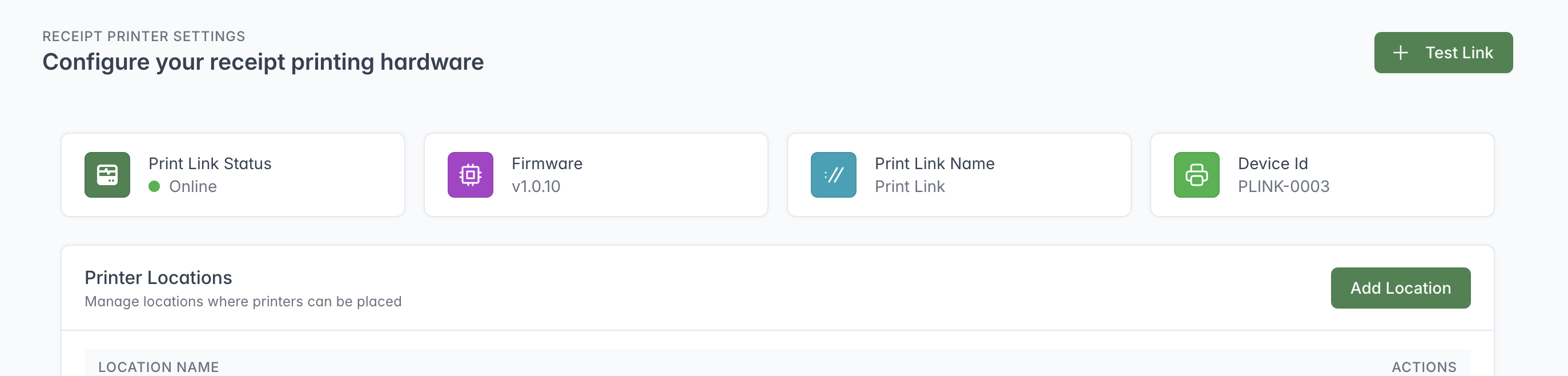
Check that the Print Link is online before configuring printers or troubleshooting failed print jobs.
Print Settings shows available device information such as online/offline state, name, device ID, firmware, and detected printers.
Use Test Link to check communication with the device. If the device is offline, check its power and network before changing printer settings.
Printer locations
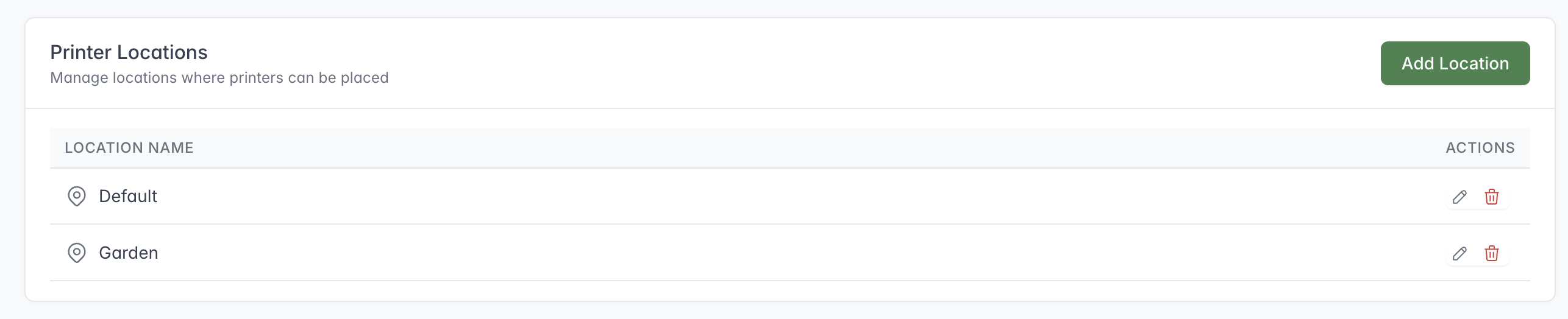
Printer Locations group printers by their operational area and can be added or edited as the setup changes.
Printer Locations route different items to the correct preparation area. For example, a pub with a separate pizza kitchen can send pizza items to the Pizza Kitchen printer, while drinks go to the Bar printer. Staff in each area then receive only the tickets relevant to them.
Create Printer Locations such as Kitchen, Bar, Reception, or Pizza Station, assign each printer to the appropriate one, and choose the matching Printer Location on the relevant menu items. A Printer Location cannot be deleted while printers still use it.
Do not confuse Printer Locations with customer ordering Locations. They can have similar names but serve different purposes.
Adding a printer
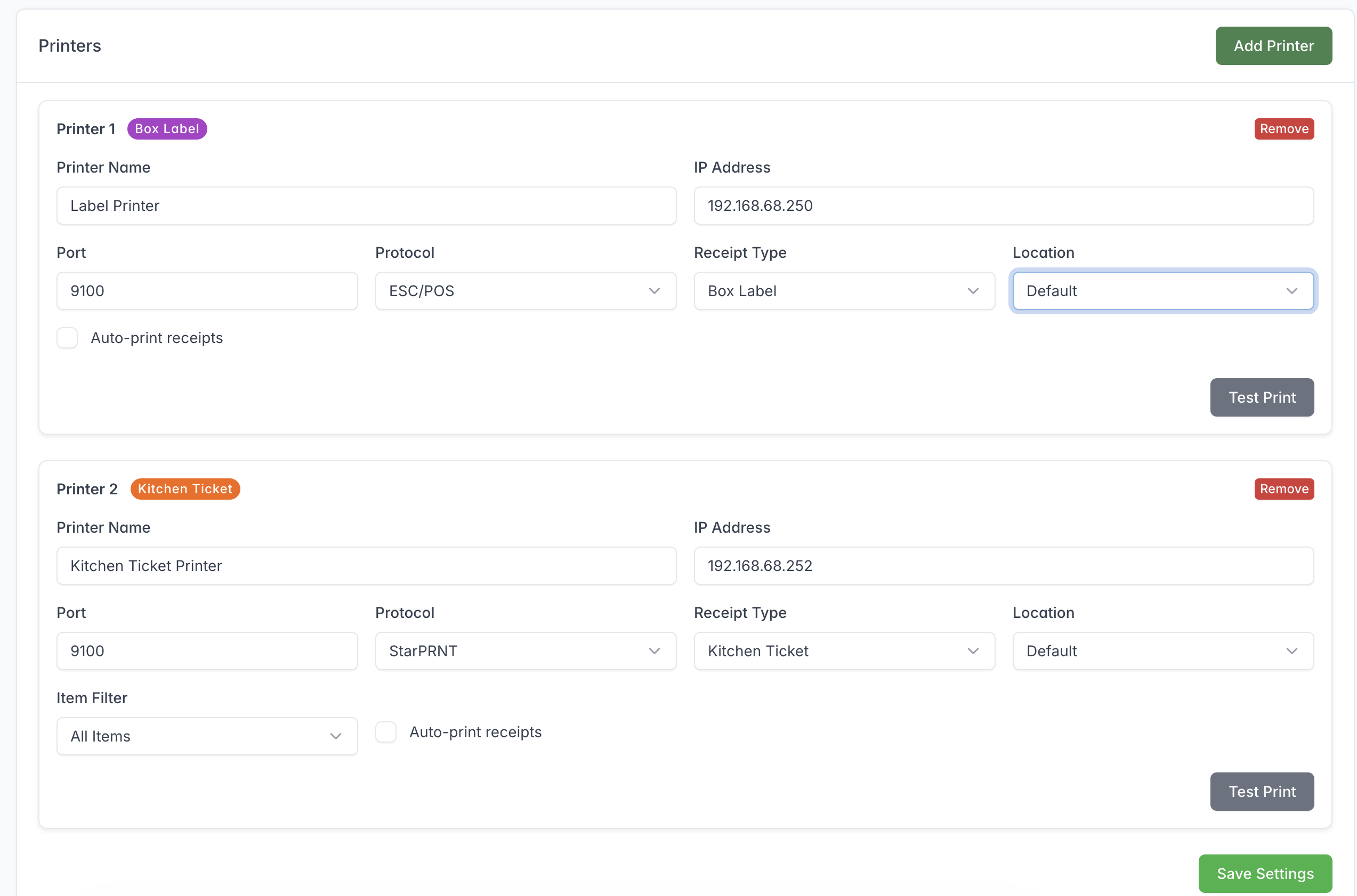
Configure each printer for its intended output and Location, save the settings, and complete a Test Print.
For each printer, configure:
- a clear name;
- IP address and port;
- protocol: ESC/POS, StarPRNT, or IPP;
- output type: Customer, Kitchen Ticket, or Box Label;
- printer location;
- for kitchen tickets, All Items, Food Only, or Drinks Only; and
- whether it prints automatically.
Save, then send a test print. A kitchen ticket test uses the ticket format.
Network printer addresses must remain stable. Where possible, reserve printer IP addresses in the location’s router.
Browser and multi-device settings
These settings are designed for businesses that can operate in more than one place at the same time. For example, a food truck business may have two trucks trading in different places, while a takeaway business may have several Locations.
Beat The Queue runs in a web browser, so each registered browser is treated as a separate device. You can register as many browsers as your business needs and give each one a recognisable name.
Link each browser to the Location it is being used at. That browser will then receive only the Orders for its assigned Location, keeping Orders from different trucks, takeaways, or other operating sites correctly separated.
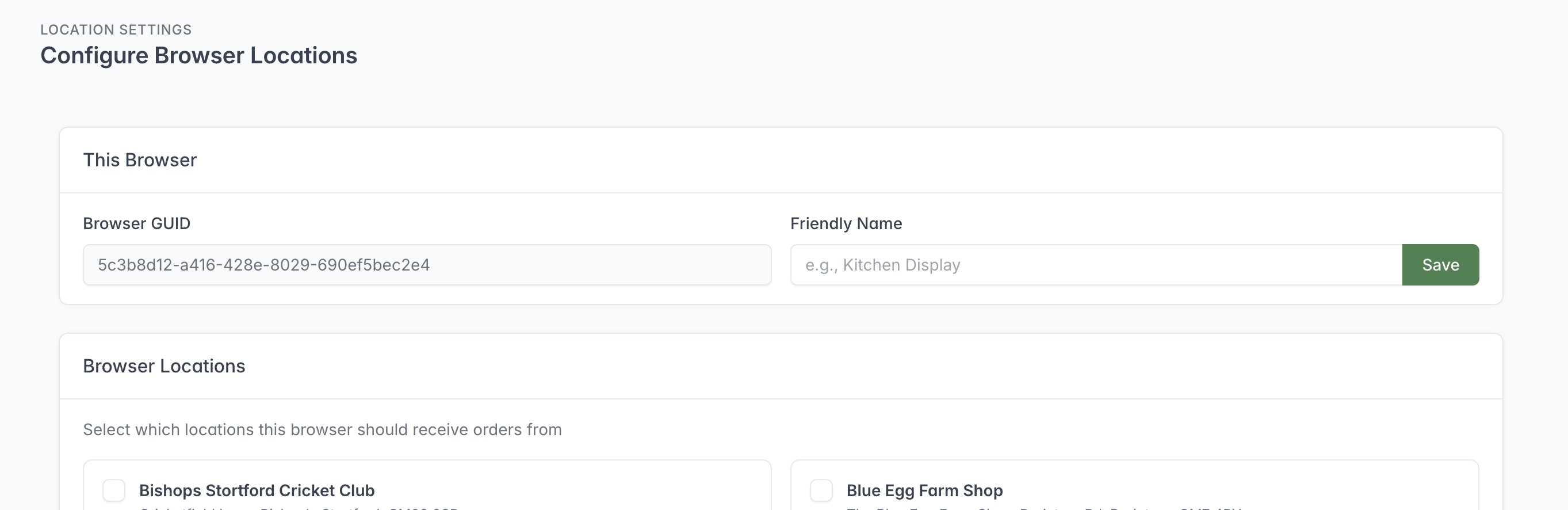
Give the browser a recognisable name and choose which Locations it should receive orders from.
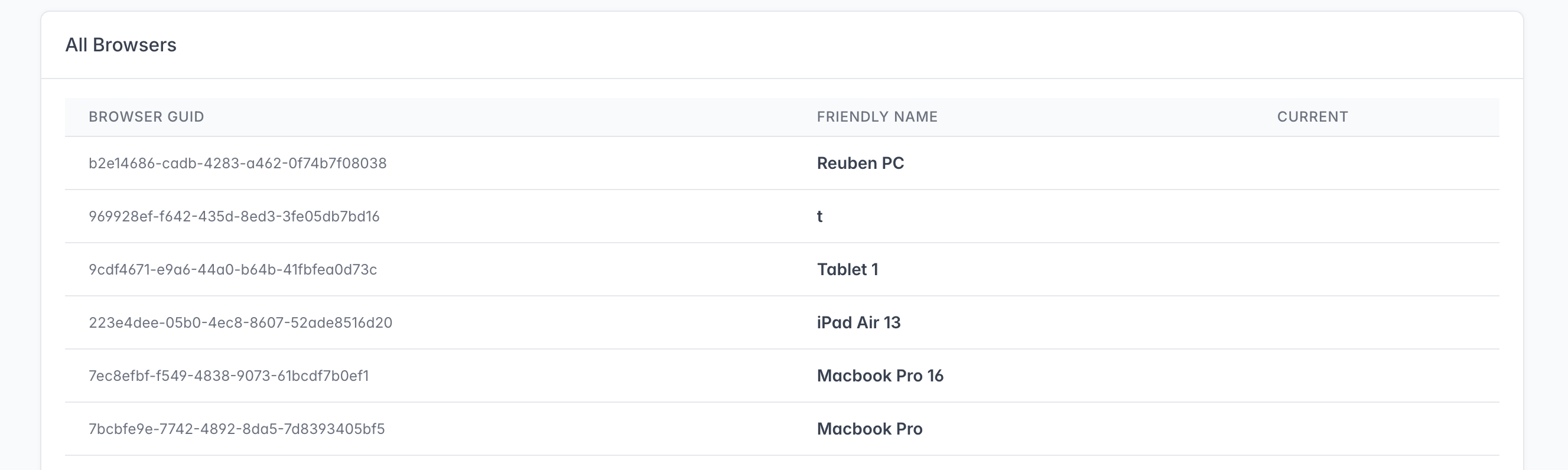
Friendly names make it easier to recognise the computers and tablets registered to the Account.
Every browser receives its own identifier. In Location Settings, you can:
- give the current browser a friendly name, such as Kitchen Display;
- assign the Location whose Orders it should receive;
- assign the printer locations it should use;
- see other registered browsers; and
- add or edit locations and opening hours.
Browser assignments affect the information and live work shown on that device. Configure each till, kitchen display, office computer, and collection display separately. Clearing browser storage may generate a new browser identity and require reassignment.
Device Logs
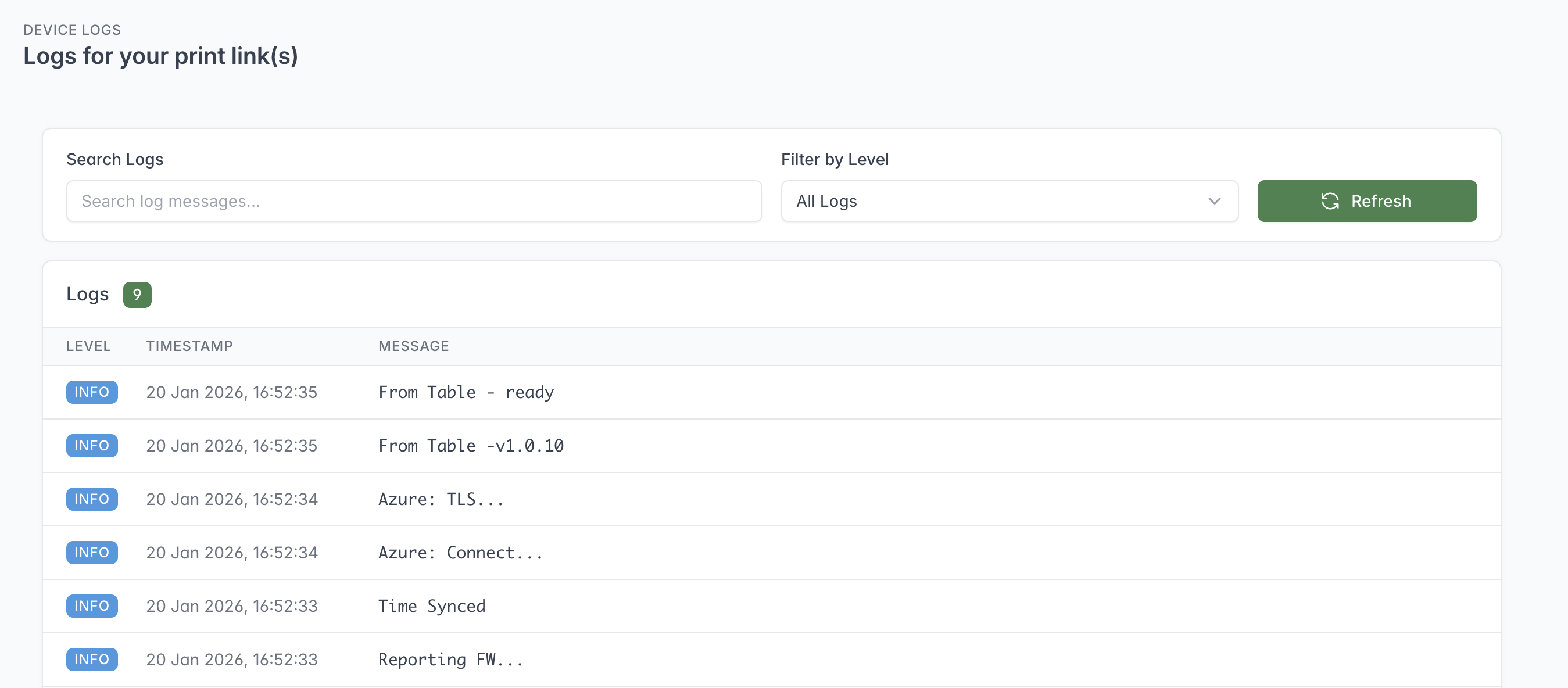
Search or filter Print Link logs when investigating connection, firmware or printing problems.
Device Logs are available when Print Link is attached. Logs can be searched, filtered by level, and refreshed. They are ordered with recent messages first.
Use logs when:
- the Print Link appears online but a job did not print;
- a printer connection repeatedly fails;
- a test print produces an error; or
- support asks for the time and text of a device message.
Logs may contain network or device details. Share only the relevant entries with trusted support staff.